Page updated: 31 March 2026
How to Add Light Rays in Photoshop (Step-by-Step Tutorial)
This tutorial will show you how to add realistic looking light rays to an image in Photoshop.
Light Rays Before & After
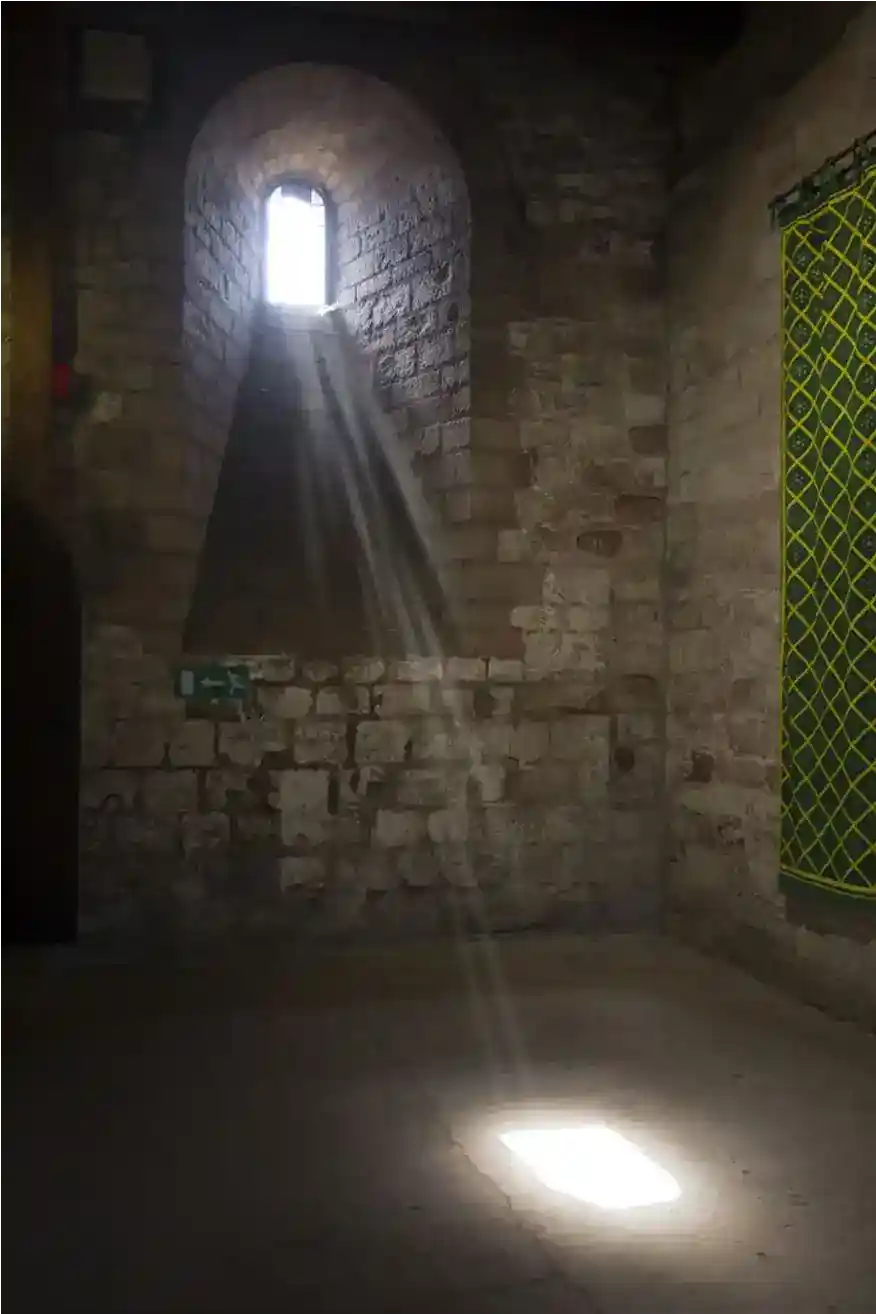
Add striking depth and atmosphere to your images with this Photoshop light rays tutorial. In just a few simple steps, you’ll learn how to create realistic rays of light that shine through windows, trees, or clouds—perfect for enhancing portraits, landscapes, and dramatic edits.
This tutorial involves painting on an empty layer, to create light rays. The tutorial includes creating a custom brush (steps 4–10) to paint with.
If you prefer not to create a custom brush, you can skip steps 4–10. After step 3, jump to step 11, where you will need to manually paint white circles, approximating what you see in step 11.
Brushes are a big subject in Photoshop and if you've not encountered brush behaviors before, I encourage you to create a custom brush.
The realistic looking light rays can be used on their own at different opacities, or combined with other light beams, as shown in the images here.
ON THIS PAGE
1. Add a New Layer
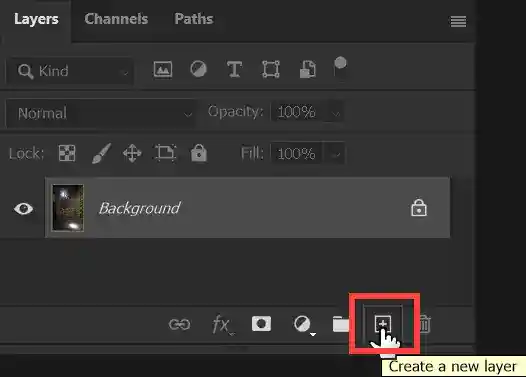
Add a new empty layer by clicking on the Create a New Layer button at the bottom of the Layers panel.
Or from the menu: Layer > New > Layer...
2. Fill New Layer with Black
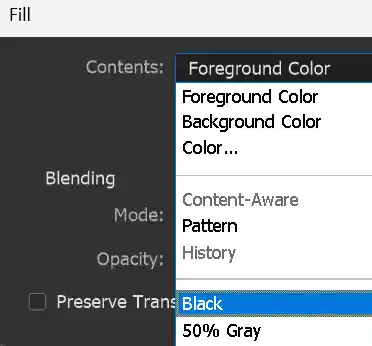
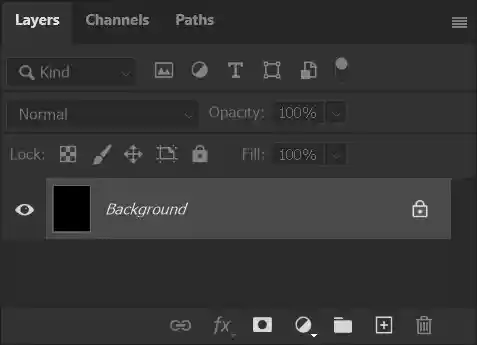
From the menu: Edit > Fill > Black.
Keyboard shortcuts: If black is the Foreground Color, press Alt+Backspace. If black is the Background Color, press Ctrl+Backspace.
To set Black and White as the Foreground & Background Colors, simply press the D key. To switch Foreground & Background Colors, press the X key.
For more information on this essential Photoshop tool, see Foreground & Background Colors. You should understand this tool.
3. Select the Brush tool
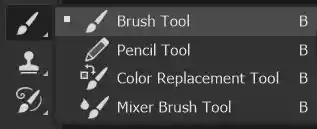
Select the Brush tool from the toolbar. It shares the button with 3 other tools, so the tool that is visible initially will be the last used tool.
The steps 4-10 are about creating a custom brush. You can skip this, if you prefer and jump to step 11, where you will need to replicate (approximately), painting the white dots on the black layer.
4. Open the Brushes Panel

In the Options bar, click on the button highlighted in red to open the Brush Settings Panel.
We will change settings on 3 tabs;
Brush Tip Shape, Shape Dynamics and Scattering.
See the next 3 steps for details.
5. Brush Tip Shape
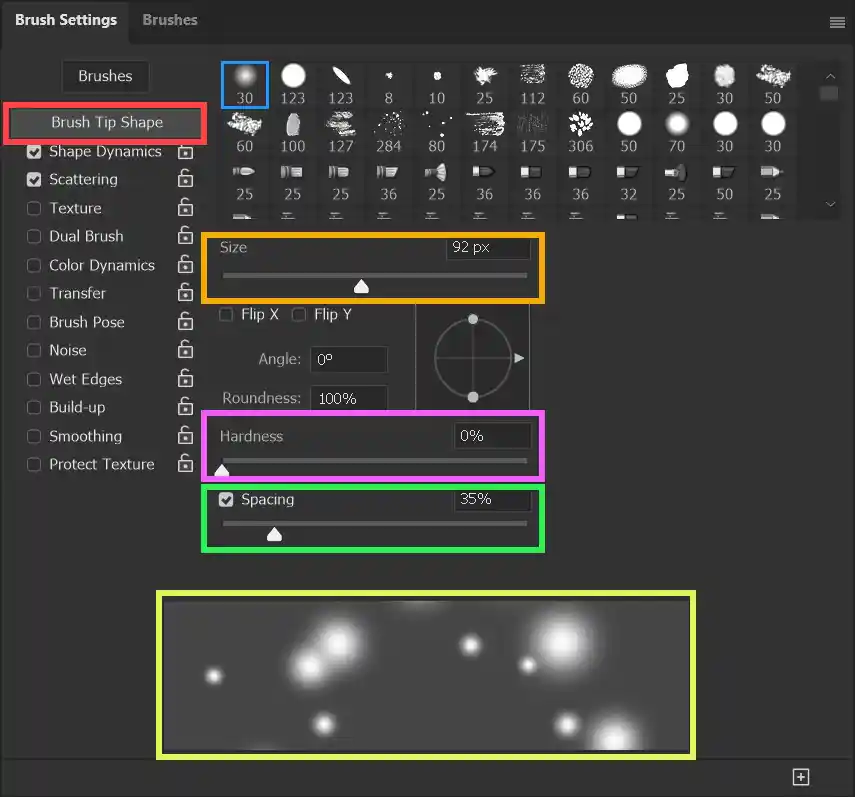
Select Brush Tip Shape (red highlight).
Adjust Size (orange highlight).
Set Hardness to zero (pink highlight)
Adjust Spacing to around 35. You will see a preview (yellow highlight), but note that it won't look the same as mine until you have adjusted Shape Dynamics and Scattering in the next 2 steps.
6. Shape Dynamics
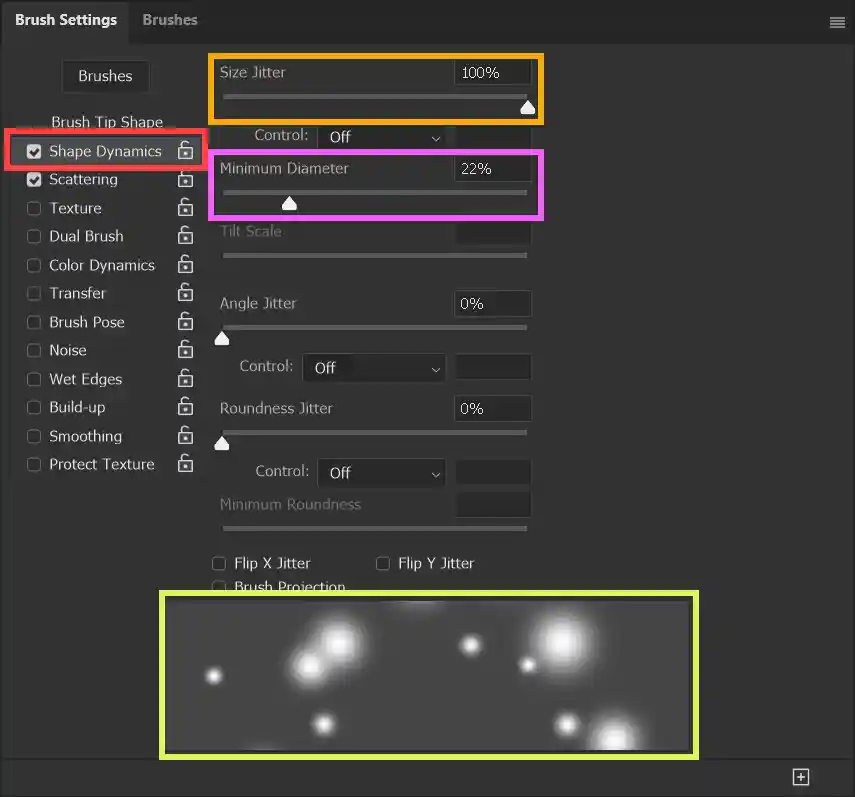
Select Shape Dynamics (red highlight).
Adjust Size Jitter to 100%, maximum (orange highlight).
Adjust Minimum Diameter to around 20-25% (pink highlight).
See the preview (yellow highlight).
7. Brush Scattering

Adjust Scattering to the maximum (green highlight).
See the preview (yellow highlight.
If you need to, return to the other settings to fine tune, to get something similar to the screenshot. Note that it does not have to be very similar. You are just looking to achieve different size dots, randomly placed, while you paint.
8. Save Brush Preset
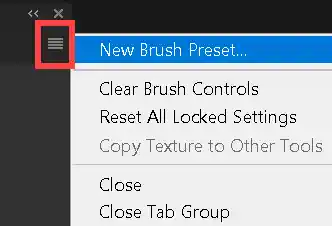
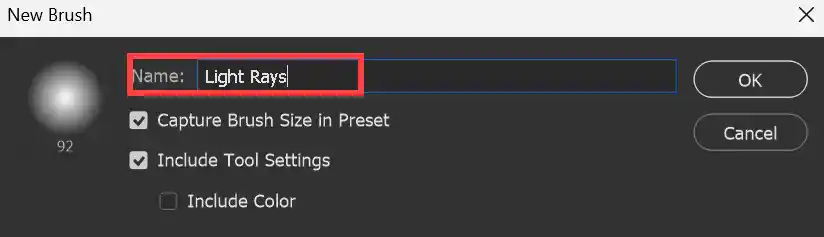
Save the Brush as a Brush preset, so you can use it again.
Click on the menu button (red highlight). This is in the top right corner of the Brush Settings Panel.
Type a name for your brush.
9. Find the Brush Preset
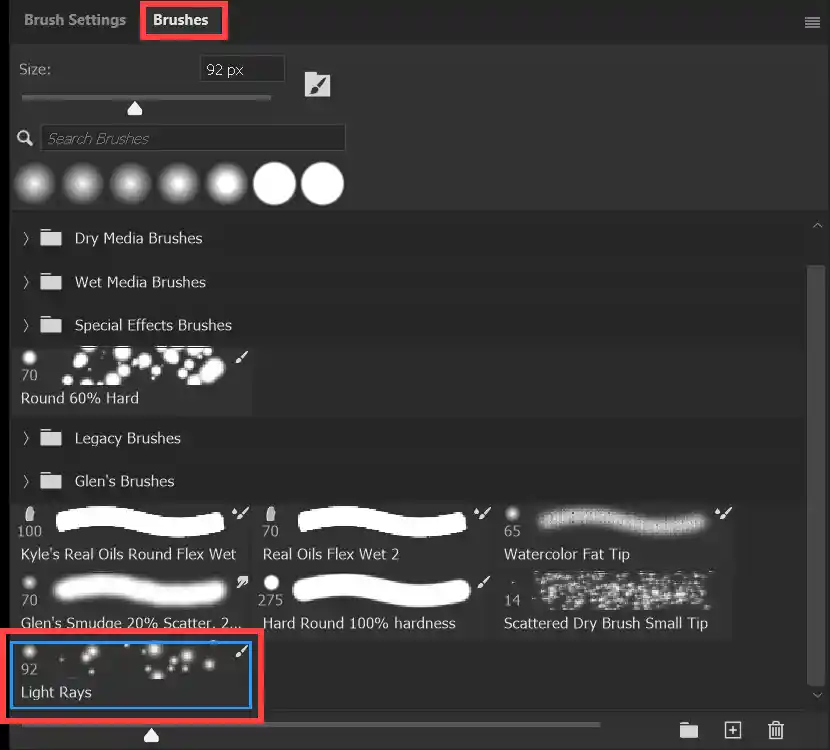
If you want to select the brush in the future, select the Brushes tab and look down towards the bottom of the panel. The brush I just created is highlighted in red.
10. Foreground Color White
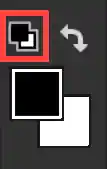
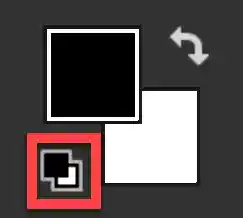
Select the black layer.
Ensure Foreground Color is White. The Foreground & Background Colors are towards the bottom of the toolbar, which is usually on the left of the screen. The two screenshots show Foreground & Background Colors on a 1 and 2 column toolbar.
To reset Foreground & Background Colors, press the D key. Or click on the Default Colors button (red highlight). This resets them to black and white. If white is not on top of black, press the X key to switch them, or click on the curved arrow.
Foreground & Background Colors are an important and much used tool in Photoshop. It's important you become familiar with them. For more information see Foreground & Background Colors.
11. Paint with the Brush

If you created a custom brush, using the Brush you just created, paint an area in the top middle of the image, on the black layer.
If you skipped creating a custom brush, select the Brush tool and select white as the Foreground color and paint something like what you see here.
Select a round brush and change the hardness to something around 50% hardness.
Vary the brush size. A quick way to change brush size is to use the square brackets keys [ and ]. For more keyboard shortcuts see Keyboard Shortcuts.
For more information about brushes, see Brush Tool.
12. Radial Blur Filter
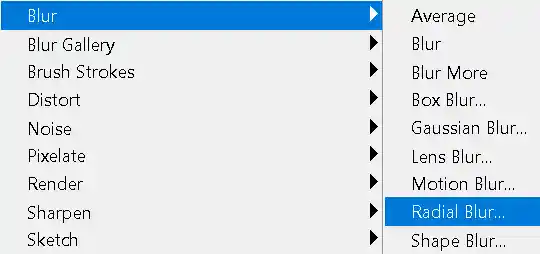
From the menu: Filter > Blur > Radial Blur.
13. Radial Blur Settings
Select Zoom.
Adjust the slider to the maximum.
Click and drag within the preview to move the center up to the top middle position.
Click OK.
Play the video to see this step.
14. Layer with Radial Blur
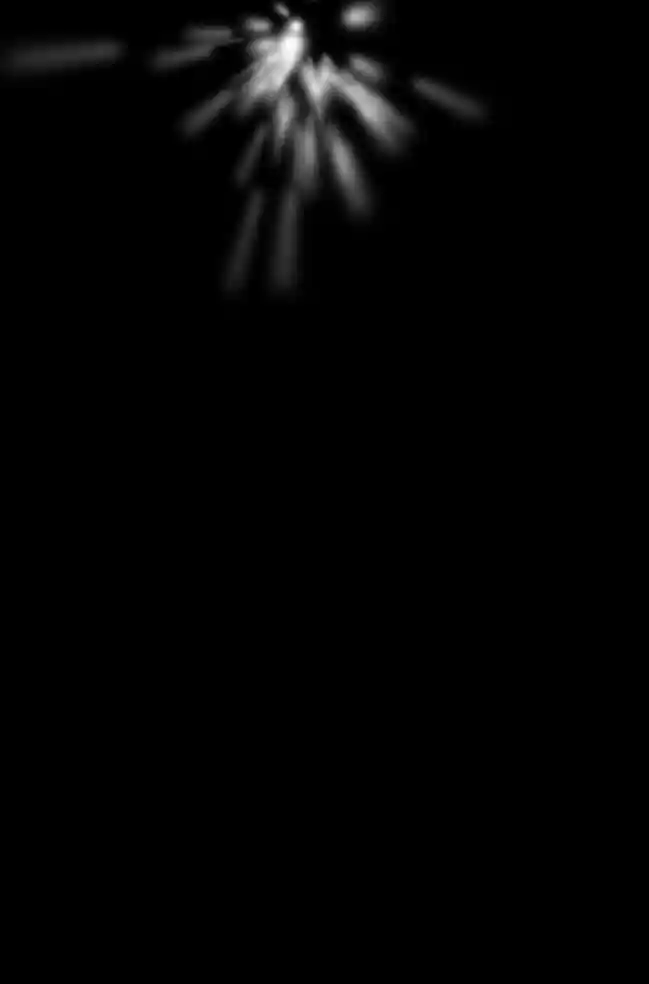
The black layer should look similar to this.
15. Move Tool & Show Transform Controls

Select the Move tool on the toolbar (red highlight). This is the first tool.
On the Options bar tick the box to Show Transform Controls.
16. Stretch Light Rays layer
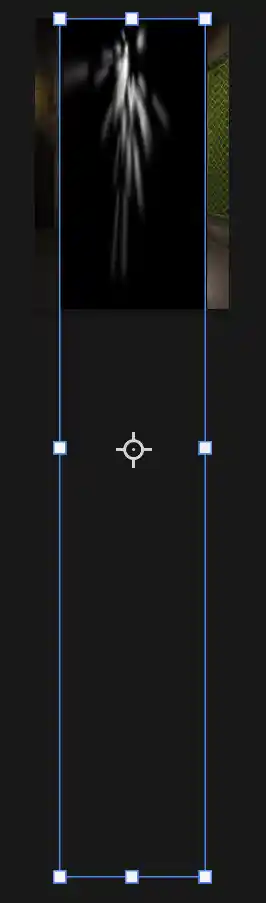

Click and drag one of the bottom handles downwards, outside the image. Drag the layer so the light rays stretch to almost the bottom of the image. Don't maintain proportions, by pressing and holding Shift while you click and drag. Make the light rays narrow.
Zoom out.
You will need to drag downwards a long way. To be able to see, zoom out of the image. If your mouse scroll wheel is set to zoom (which I recommend if you use a mouse), then roll the scroll wheel.
To set the mouse scroll wheel to zoom, from the menu: Edit > Preferences > Tools and tick the box to Zoom with Scroll Wheel.
Or select the Zoom tool from the toolbar, towards the bottom of the toolbar, just above Foreground & Background Colors. On the Options bar, select Minus to zoom out and click on the image.
17. Screen Blend Mode
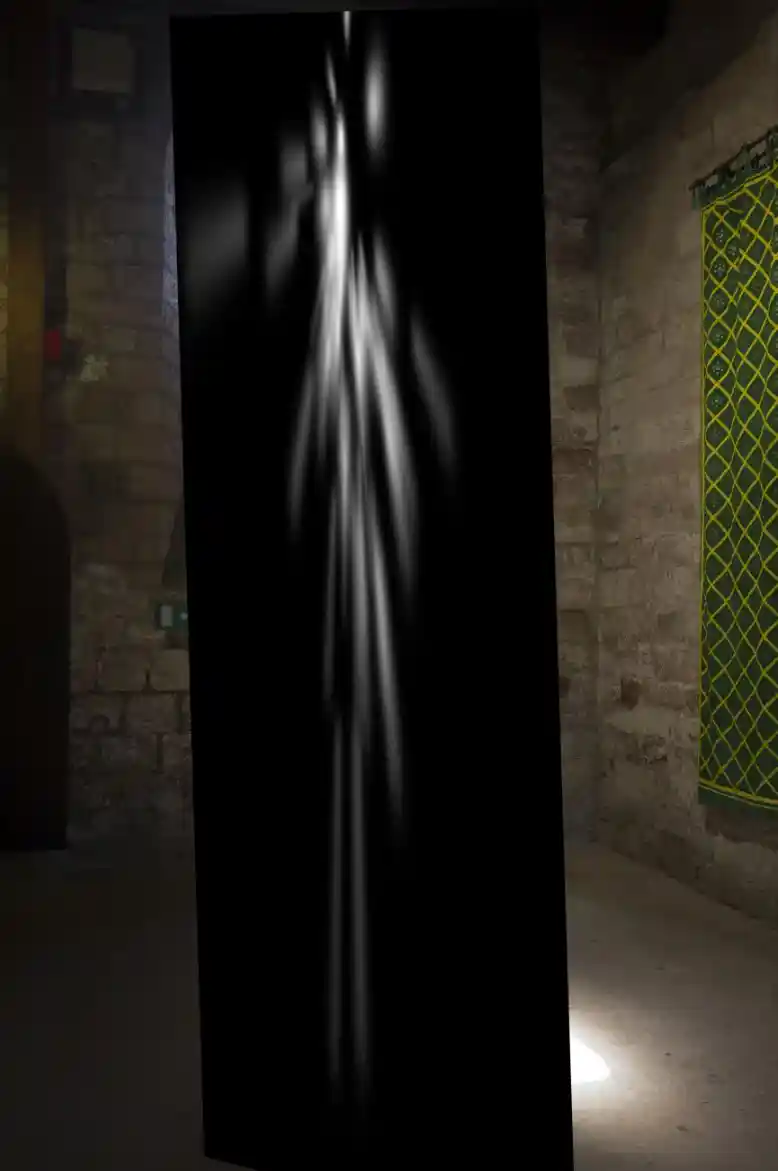
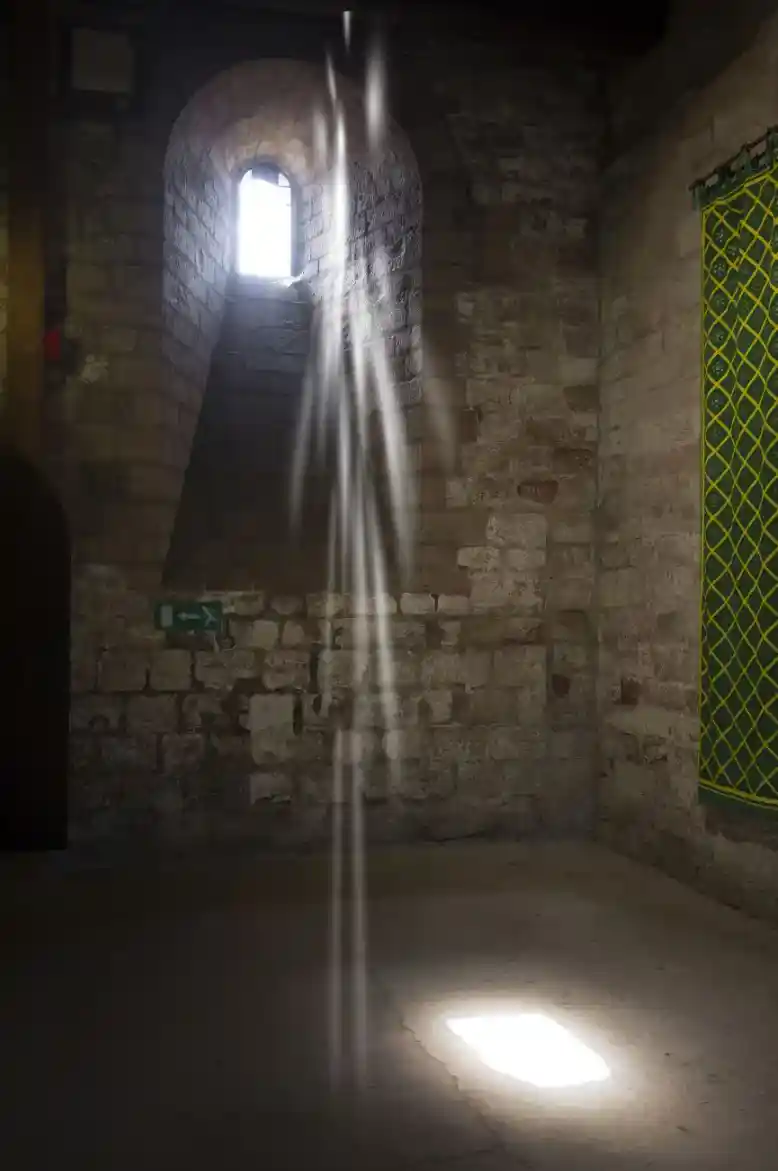
Change the Blend Mode of the light rays layer to Screen.
18. Crop excess image

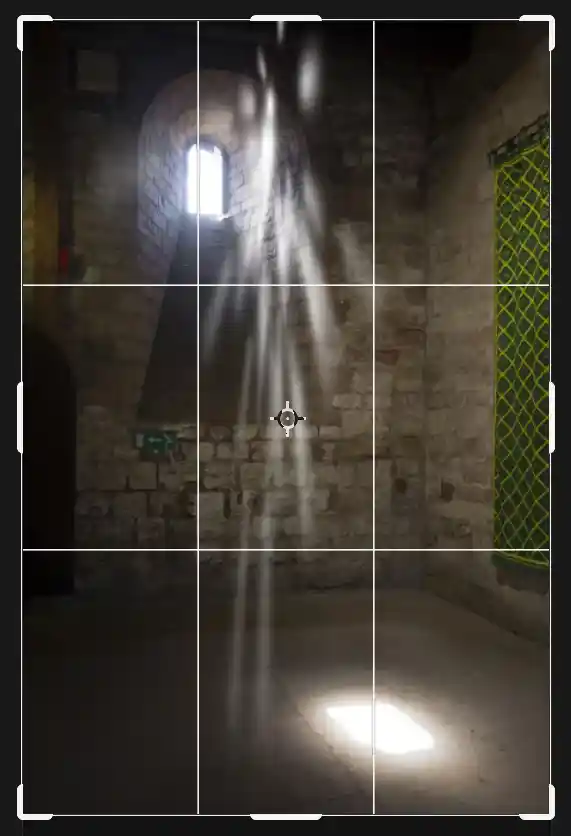
It's not essential, but I suggest you crop the image. There is now a lot of image size, outside the image, that contains nothing of value. Select the Crop tool from the toolbar and on the Options bar select the box to Delete Pixels.
Click on the image. When you see the grid, press Enter to confirm, or click the tick in the Options bar.
If you usually have this unticked, so you can crop non-destructively, remember to tick the box again after cropping.
19. Position and Rotate
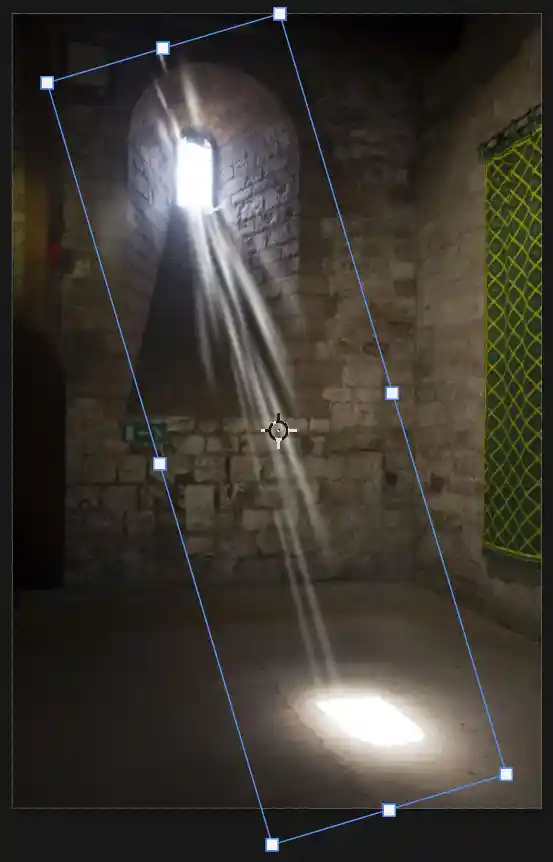
Select the Move tool from the toolbar (first tool).
In the Options bar, tick the box to Show Transform Controls.
Move the cursor just outside the blue box, watch for the cursor to change to a curved arrow, then click and drag to rotate the light rays layer.
Click and drag the layer into position. Don't worry about parts of the layer pointing the wrong way. We will mask them so they will be hidden.
20. Add Layer Mask


Add a layer mask by clicking on the layer mask button (red highlight) at the bottom of the layers panel.
The green highlight shows the layer mask is added.
21. Select Brush Tool
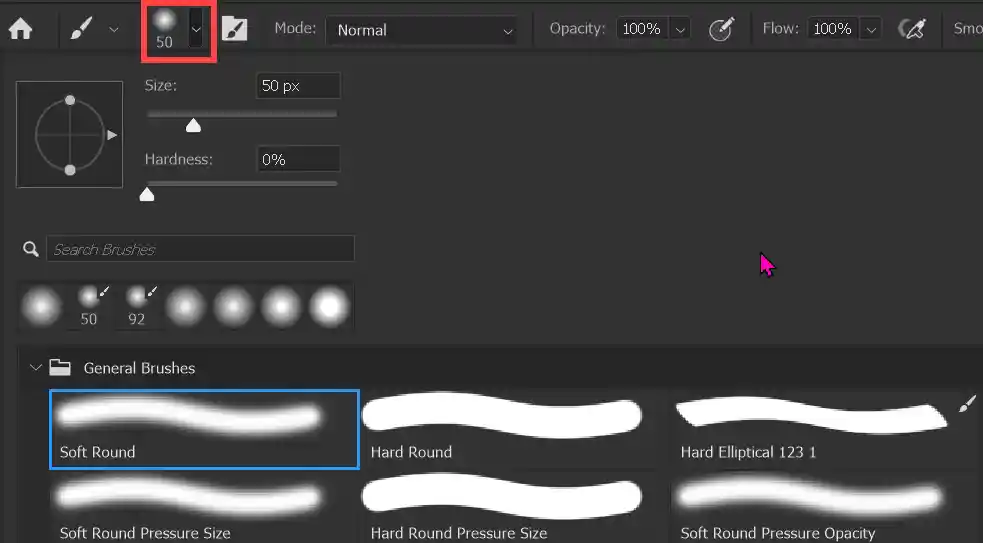
Select the Brush tool from the toolbar.
On the Options bar select the Brush Preset Picker (red highlight).
Select a regular soft round brush.
22. Foreground Color Black
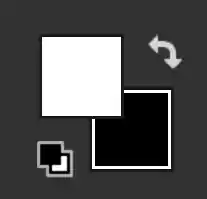
As you just added the Layer Mask, it should be selected (white highlight around the mask). But if you have done other things, it may not be selected. You will need to click directly on the Layer Mask to select it.
Ensure Foreground Color is Black. The Foreground & Background Colors are towards the bottom of the toolbar, which is usually on the left of the screen.
To reset Foreground & Background Colors, press the D key. This resets them to black and white. If black is not on top of white, press the X key to switch them.
Paint over the parts of the light beams layer that you want to remove. If you make a mistake, change the Foreground Color to white by pressing the X key, then paint back what you have masked.
For more information see Layer Masks and Foreground & Background Colors.
23. Mask Unwanted Areas
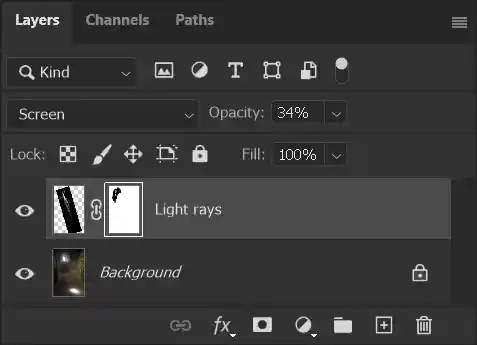
The Layer Mask is selected, as shown by the white highlight around it.
The black area on the Layer Mask shows where I masked part of the light rays layer that I didn't want.
Light Rays Before & After Masking

To make the light beam look real, you need to mask parts of it that appear outside the window.
The finished image and options
Explore the different options by clicking on the buttons.
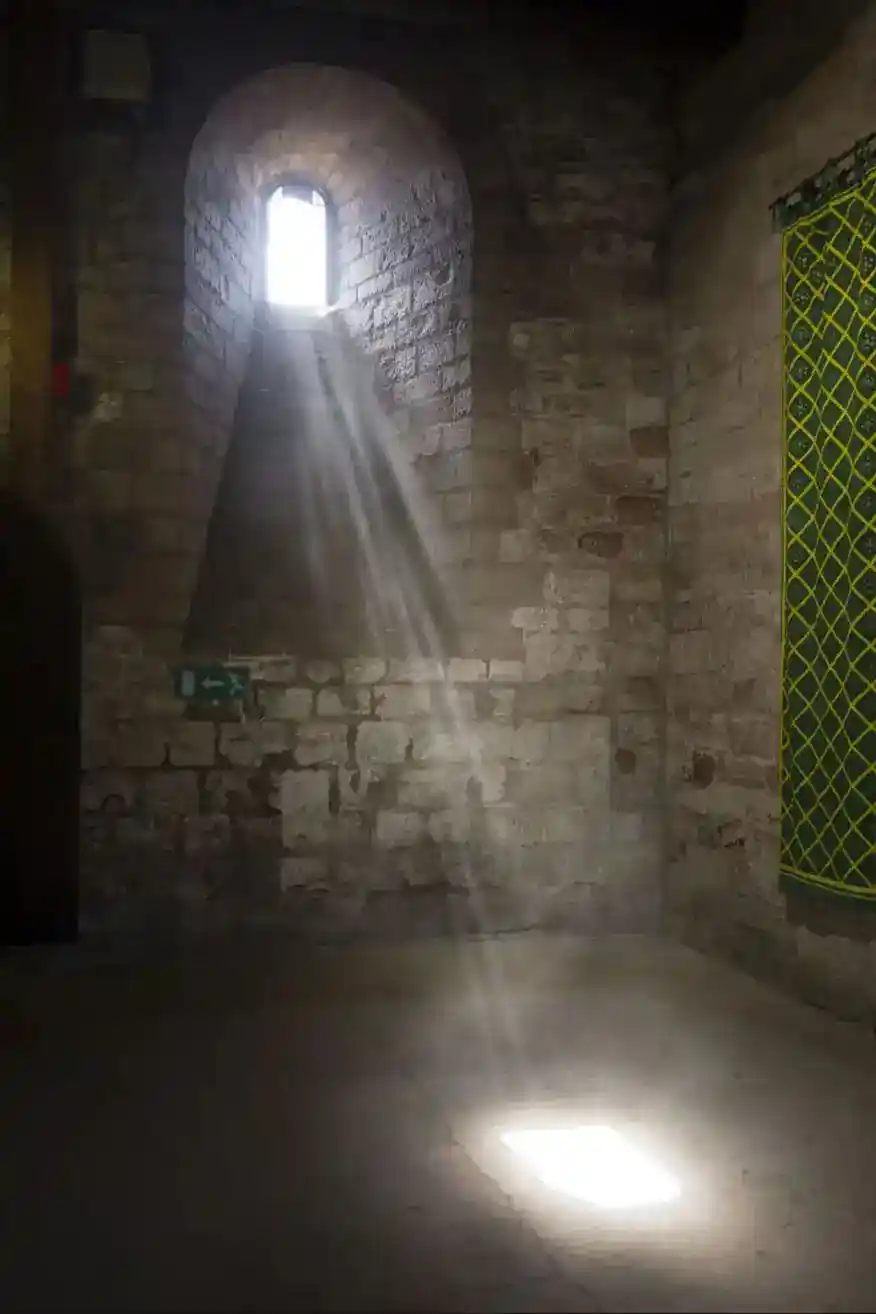
Click on the buttons to view different options.
You can adjust the opacity of any layer to further refine the look.
