Page updated: 24 March 2026
The Navigator Panel
Navigate and Zoom Around Your IMage
The Navigator panel is a useful tool in navigating around your image when you are zoomed in and the whole image is not visible.
ON THIS PAGE
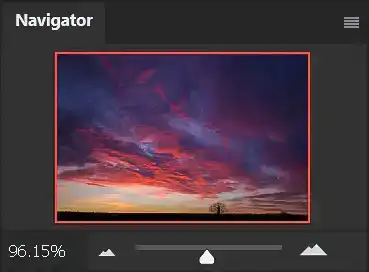
Navigator Panel showing whole image
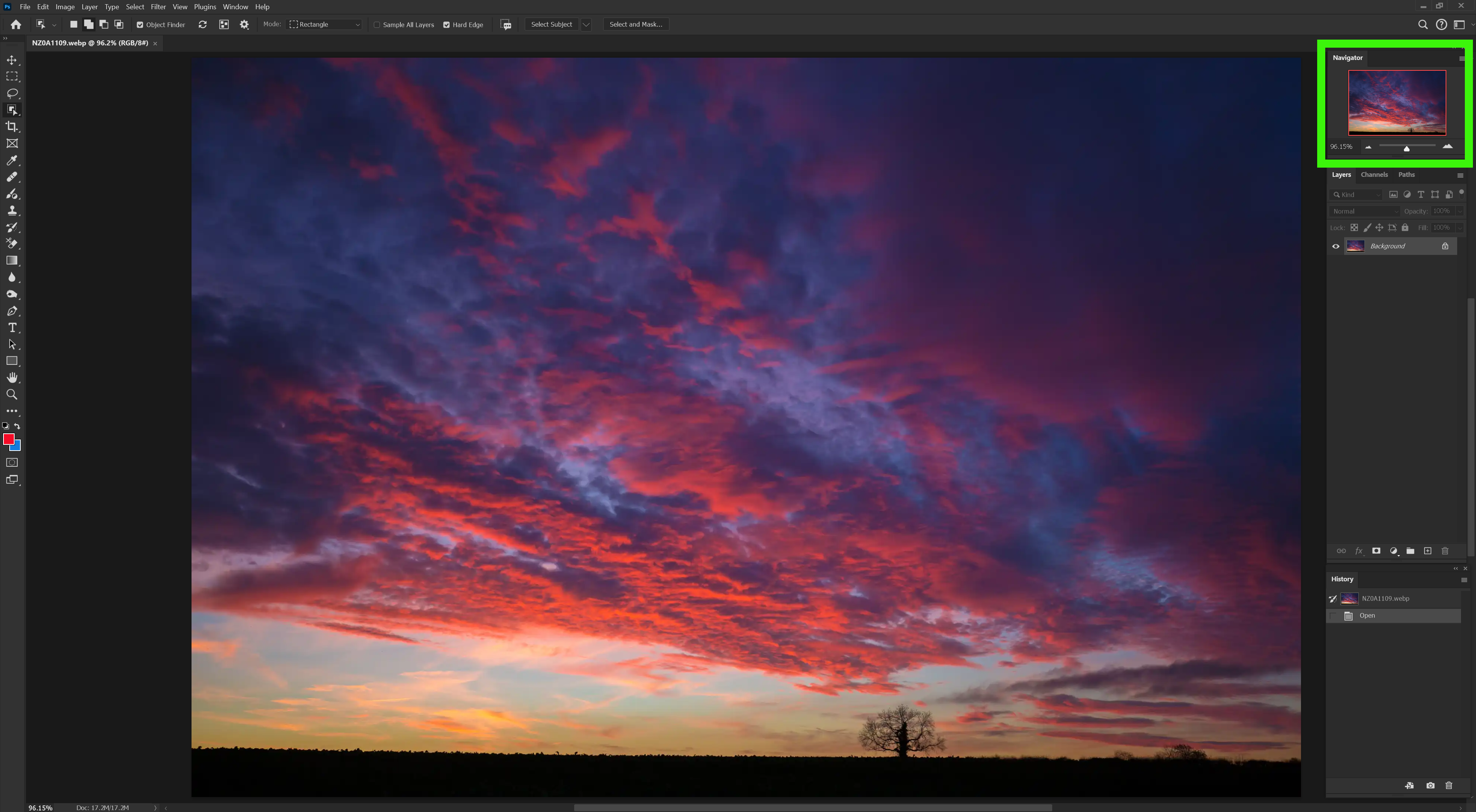
The red line in the Navigator Panel indicates how much of the image is visible in the Image Window. In this example, it is around the whole image, because the whole image is visible in the main image window.
Navigator Panel showing part image
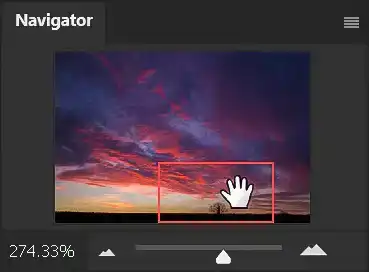
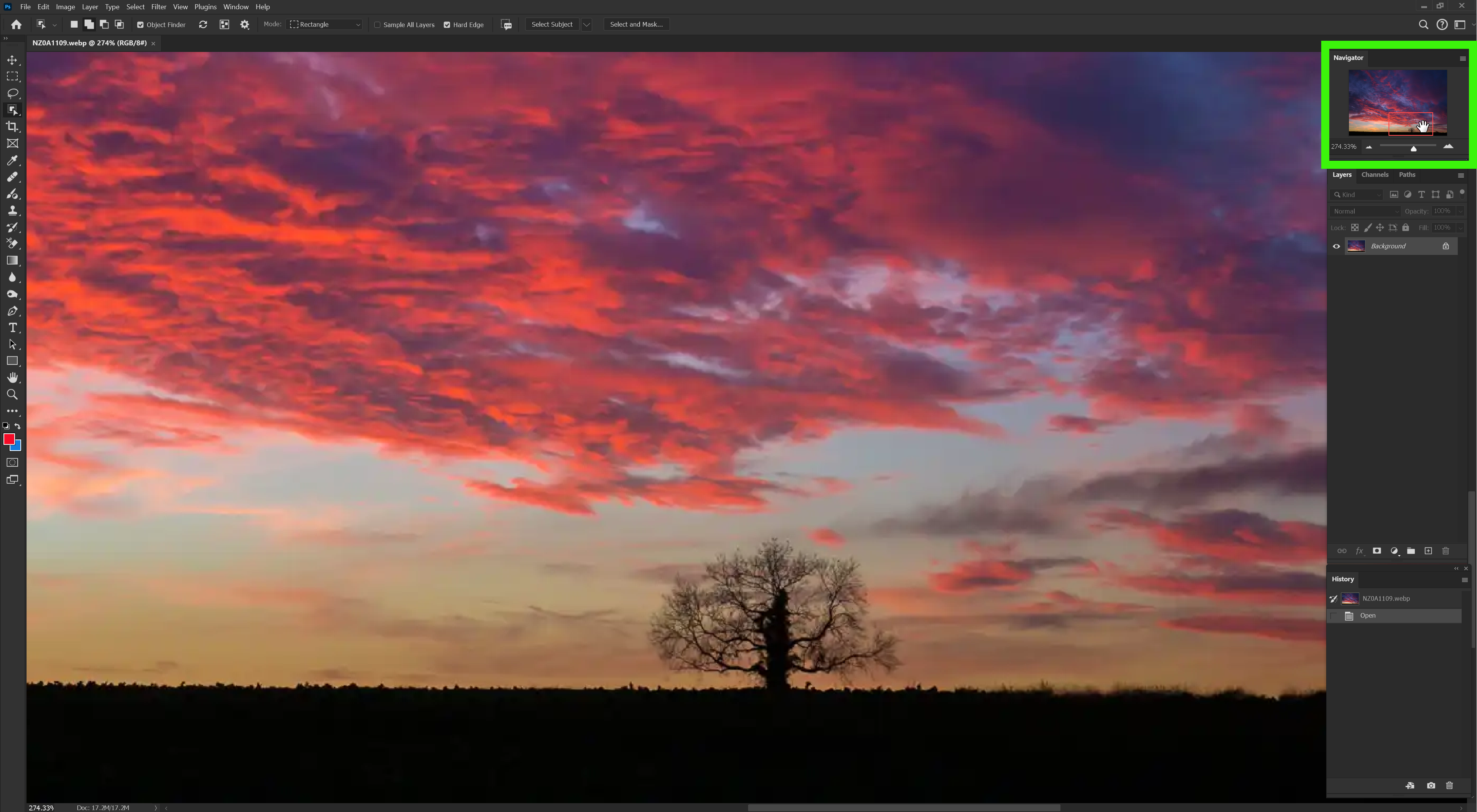
In this example, the Navigator Panel shows that the image has been zoomed in. The red box indicates the exact area that is visible in the main image window.
Navigator Panel showing part image
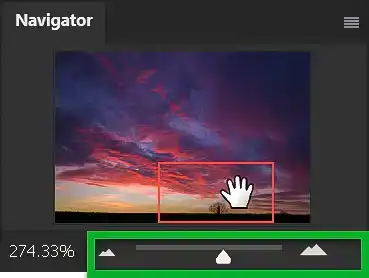
When you zoom in and can't see the whole image, the area that you can see in the Image Window, is indicated by the red box. Move the cursor over this red box and it changes to a Hand cursor. Click and drag to move the image, to view the area you want.
The green highlight shows the zoom slider. Drag to the right to zoom in and drag to the left to zoom out.
Having said that, a better method of zooming in and out is my using the mouse scroll wheel, which you can set in Preferences. From the menu: Edit > Preferences > Tools > tick box for Zoom with Scroll Wheel.
Also, a better method of panning around a zoomed-in image is to press and hold the spacebar. While it's pressed the cursor changes into the Hand icon and you can click and drag (in the main Image Window), to pan around the image.
