Page updated: 24 March 2026
Add Anchor Point Tool
Add Anchor Points to a Path
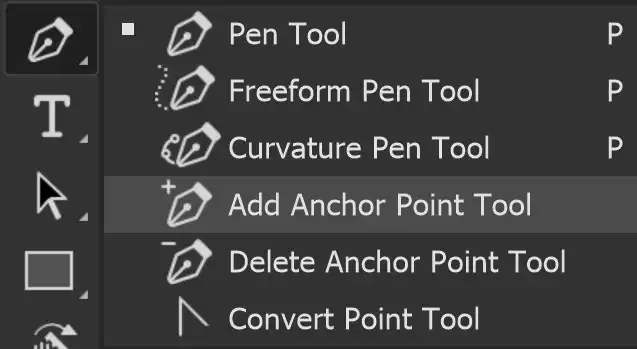
This is a very simple tool that adds anchor points to a path.
However, it's often not necessary to do so. If you're using the Pen tool or Freeform Pen tool, if you click on an existing anchor, it will be removed.
There are no options for this tool.
ON THIS PAGE
Tool Presets
You can create and save a Tool Preset for any tool. This will remember settings that you choose. Presets for brushes are much more useful than for some tools. If you wish to use presets, you have the option of either creating a tool preset or a brush preset. Right click on the Tool Presets button to reset the tool to default settings.
How to use the Add Anchor Point Tool
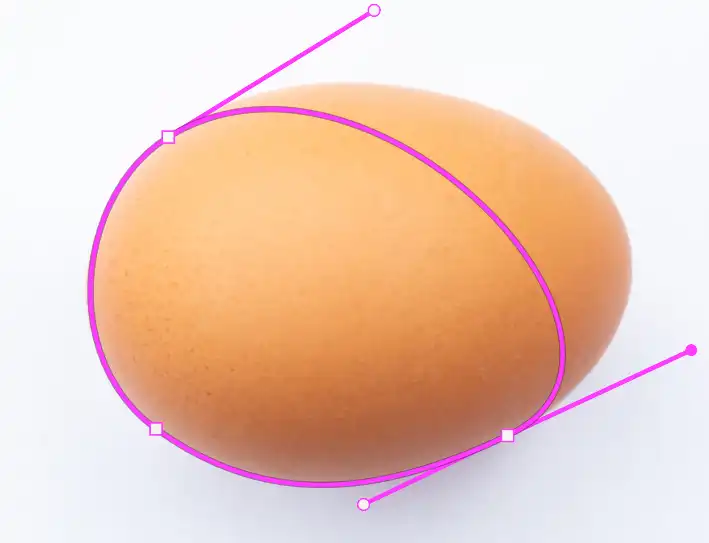
When you have an existing path, you can add anchor points to it with this tool. However, if you are using the Pen Tool, Freeform Pen Tool or the Curvature Pen Tool, you can just click on the path to add an anchor point.
1. Add Anchor Point Tool
Select the Add Anchor Point Tool. Like most tools it shares the button with other tools and the one that is visible, is the last used tool. All the tools on this button are Pen tools.
2. Add Anchor Point
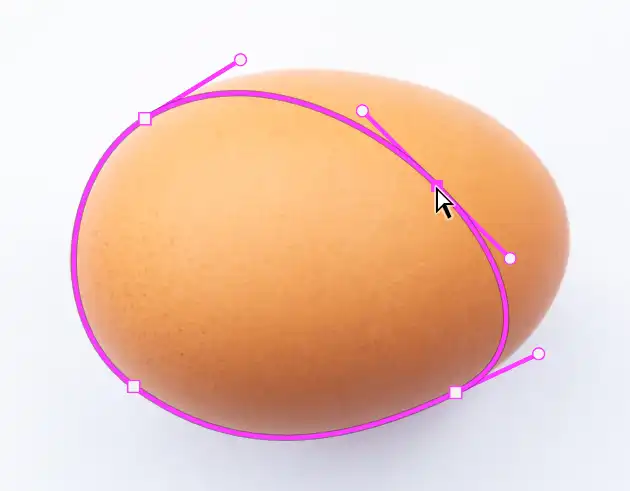
Click on the existing path to add an anchor point to the path.
You can't just click anywhere. You must click on a path.
Alternatively, if you are using the Pen Tool, Freeform Pen Tool or the Curvature Pen Tool, you can just click on the path to add an anchor point.
3. Move Anchor Point
You will then often need to move the anchor point. There are different methods, depending on which Pen tool you're using.
You can select the Convert Point tool, then click on an anchor and drag it. Note that when you click on an anchor point with the Convert Point tool, it resets the handles.
If you are using the Curvature Pen Tool, you can just click on the path (which will add an anchor) and drag, or click on an existing anchor and drag.
If you are using the Pen Tool, or the Curvature Pen Tool you can press and hold the Ctrl key, then click and drag, either on the path itself or an anchor.
4. Convert Point Tool

This screenshot shows the Convert Point tool. Click on an anchor and drag.
But note that when you click on an anchor with the Convert Point tool, it will reset the handles, thus removing the curve.
If you click on the anchor with the Curvature Pen Tool, (or with the Pen or Freeform Pen tools with Ctrl pressed), you can move the anchor and path without losing the curve. The curve will adjust, depending on where it is dragged to.
5. Handles reset
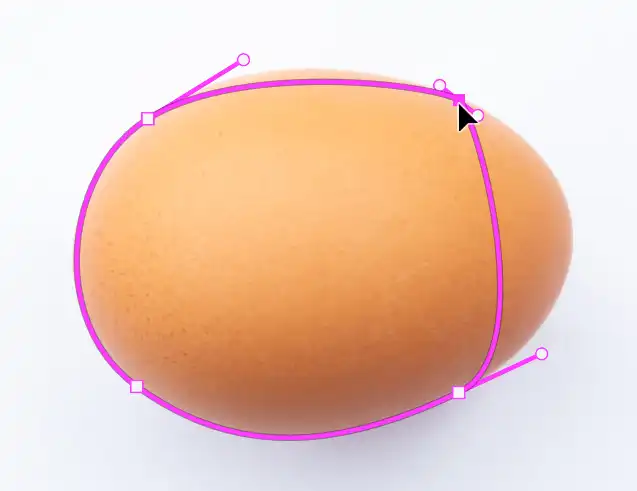
This screenshot shows the Convert Point tool has moved the anchor, but the handles have been reset, so the smooth curve disappears.
6. Pen Tool Add Anchor
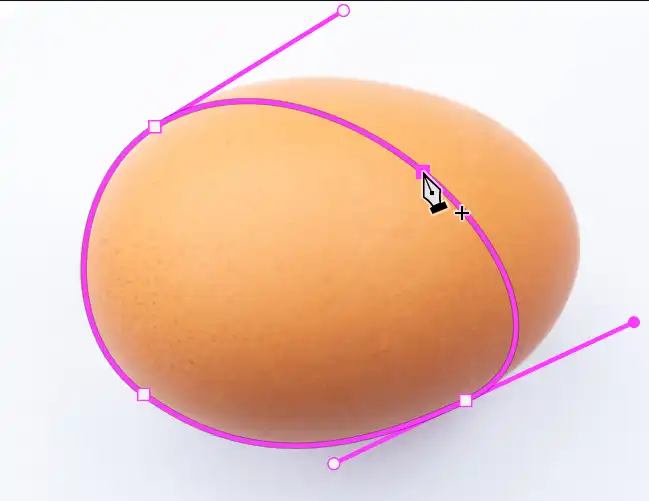
This time I have the Pen tool. Note that if I position it over the path, it will add an anchor if I click, as indicated by the + sign. It's the equivalent of selecting the Add Anchor Point Tool, although a lot quicker if you are already using the Pen tool.
7. Pen Tool Remove Anchor
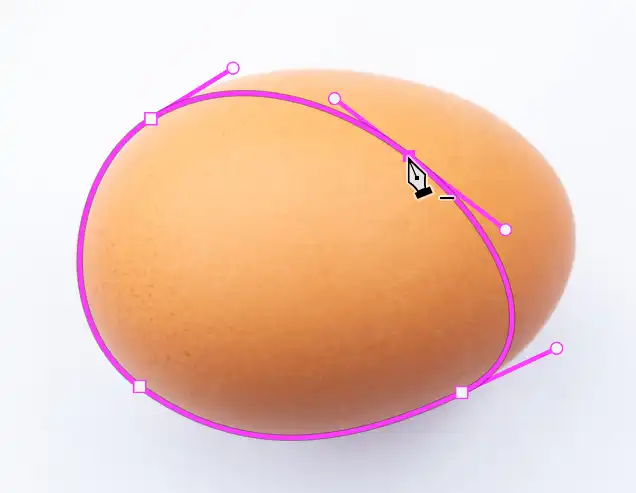
I have just clicked the path with the Pen tool and added an anchor. Notice now that an anchor exists, when I hold the Pen tool over the anchor, the Pen tool displays a - (minus) sign, indicating that if I clicked again on the anchor it would be removed.
8. Pen Tool Move Anchor
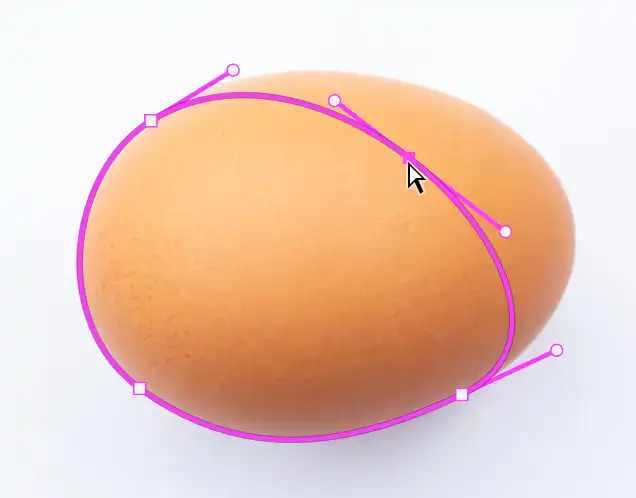
This time I'm still using the Pen tool, after adding an anchor, but now I have pressed and held the Ctrl key. Now I can click and drag to move the anchor (or the path).
9. Pen Tool Moved Anchor
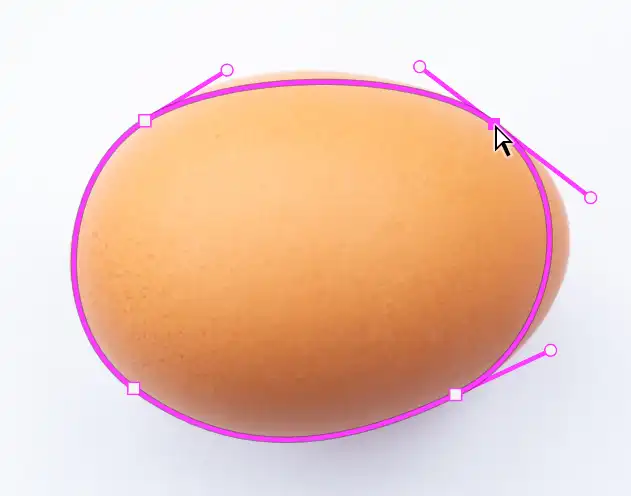
I have dragged the anchor to the edge. Unlike using the Convert Point tool, the curve is not lost. The handles have not been reset. It adjusts the curvature, but it's still a smooth curve.
10. Pen Tool + Ctrl Key
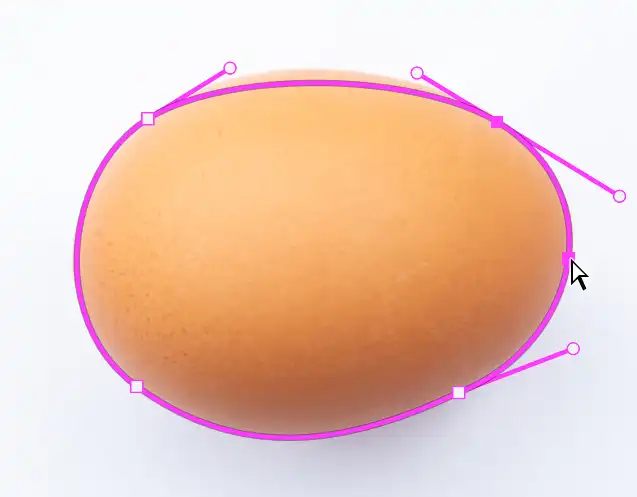
Still using the Pen tool, with the Ctrl key pressed, I have clicked and dragged the rightmost curve to fit the edge of the egg.
11. Pen Tool + Ctrl Key
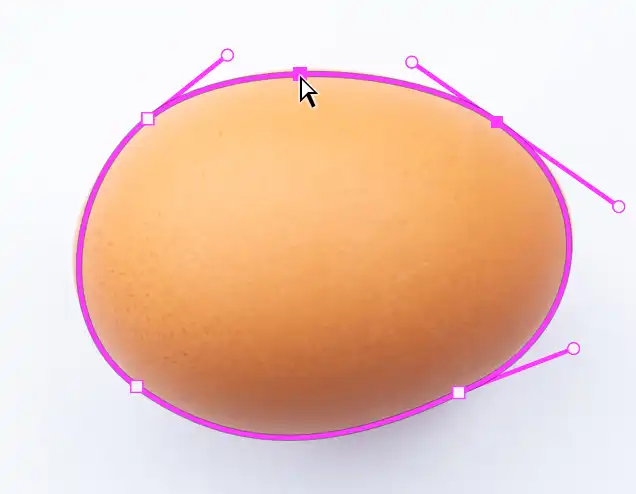
Still with the Pen tool and Ctrl pressed, I have now clicked and dragged to top portion of the curve to the edge of the egg.
Summary of the Add Anchor Point Tool
You can select the Add Anchor Point Tool, but often it's not necessary to do so. If you're using the Pen or Freeform Pen tool, if you click on an existing anchor, it will be removed.
Happy editing!
