Page updated: 24 March 2026
Color Picker
There are many tools in Photoshop, on the Toolbar and in the menu, that allow you to select a color and they will open the Color Picker.
Color Picker Panel
ON THIS PAGE
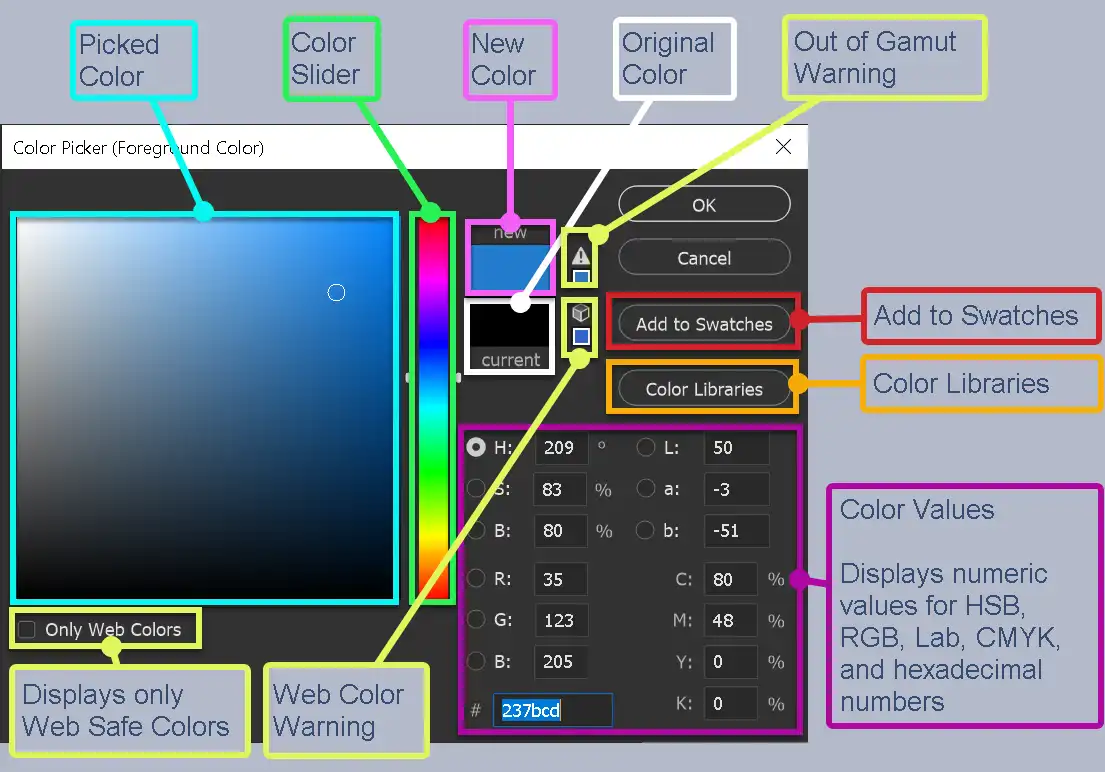
Picked Colour

Click anywhere within this area to select a colour. You can click multiple times.
By default, this starts showing red, as it is the colour at the top of the Color Slider. Click in the Color Slider (or in an open image), to select a colour. Then click in the Picked Color area to select the color.
You can also click outside the Color Picker, directly in an open image to select a color directly from that image. In that case, you usually wouldn't click again in the Picked Color area to sample a different color.
Colour Slider

Click anywhere in the vertical bar to select a general colour.
You can also click and drag the small white triangles, shown here at the bottom of the Color Slider, to refine the color.
The full range of tones for that colour are then displayed in the Picked Colour area (the large square), for you to click into to select a color.
New Colour
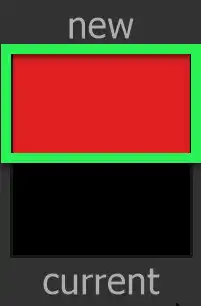
This shows the new colour that you just selected in the Colour Picker area.
Original Colour
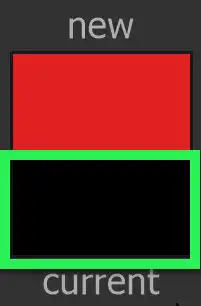
This shows the original color, before you opened the Color Picker
Out of Gamut Warning Icon
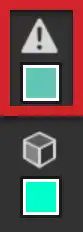
Images are displayed on screens in RGB; red, green, blue. Printers generally print in CMYK; cyan, magenta, yellow, black.
Some colors in the RGB, HSB, and Lab color models can't be printed because they are out-of-gamut, i.e. they have no equivalent in the CMYK mode.
The warning alert triangle appears when you choose a non-printable color.
Web Safe Color Warning Icon
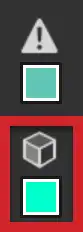
Older computers can only display a limited range of 216 colors. Web Safe Color warning appears when the color is outside this range.
Older computers used 8-bit graphics cards, whereas today's computers use 24-bit graphics cards that can display millions of colors.
You can therefore safely ignore the warnings.
Display Web Safe Colors

When this box is ticked, you will see only web safe colors.
Add to Swatches

Add to Swatches, to reuse the color later in other projects.
Open the Swatches panel from the Window menu.
Libraries
Add colors to Libraries, to easily share between other Adobe applications, such as Illustrator and InDesign.
How to Use the Color Picker
1. Red is default
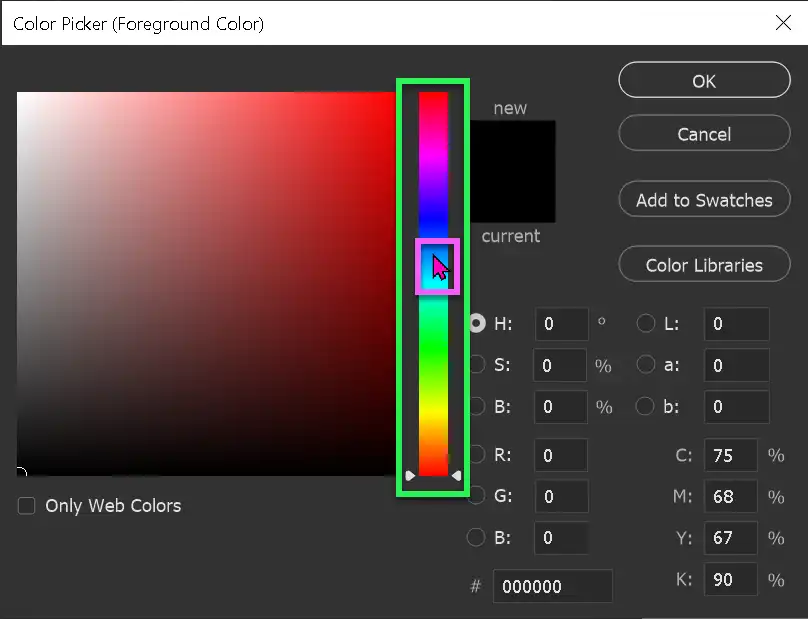
By default the Color Picker starts on red, as that is at the top of the Color Slider (vertical bar, highlighted in green).
I have moved the cursor just above halfway up (highlighted in pink), in a blue colour. The next step shows the color I selected.
2. Select a Color
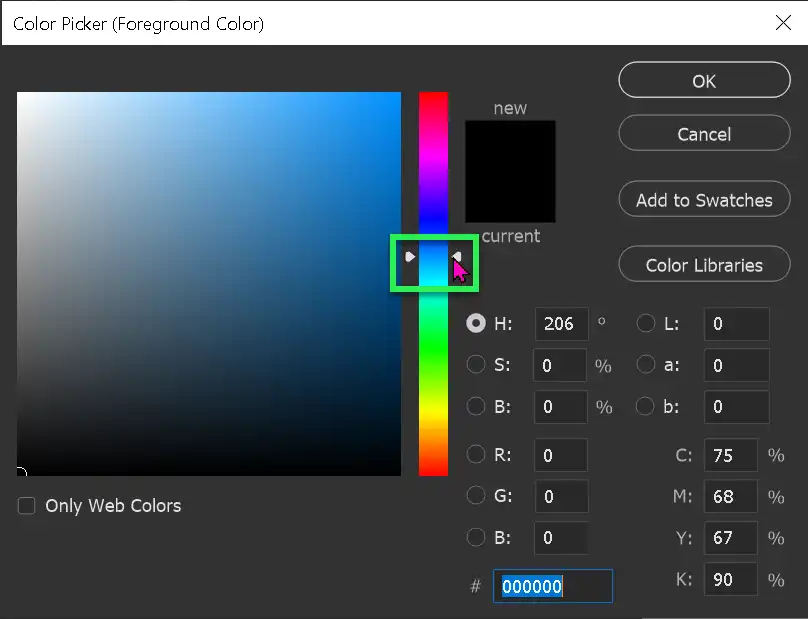
If you haven't selected exactly the colour you wanted, you can click and drag the small triangles on the vertical bar (highlighted in green) and drag them to find a better color.
3. Selected Color
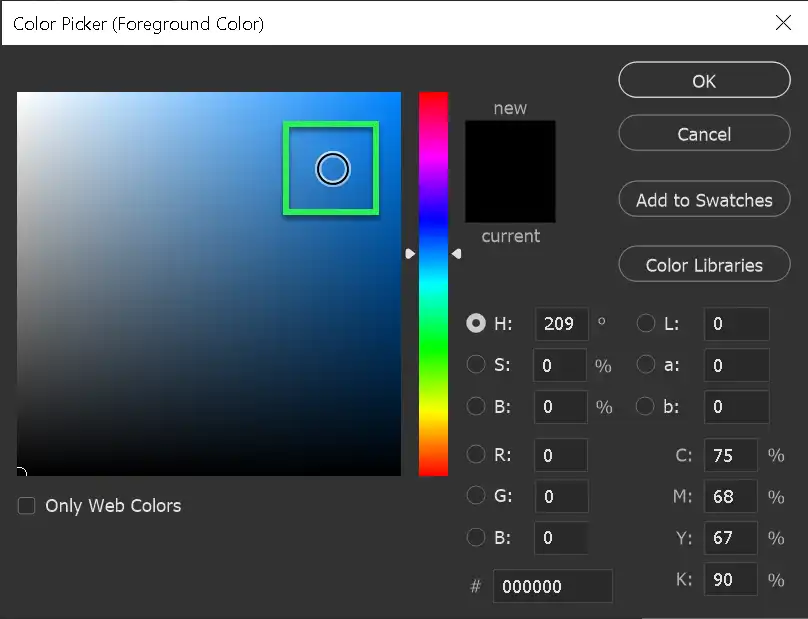
The circle (highlighted in green), shows where I clicked to select a color.
4. New Color shown
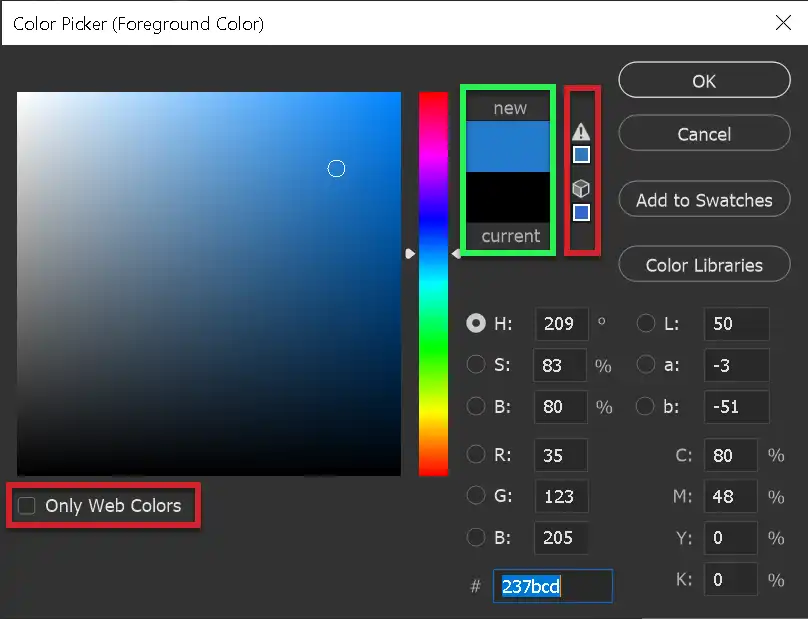
After selecting the color, note that the new color is shown in a box with the old color (highlighted in green). You can click again, if you didn't achieve the desired color.
Note that there are warnings that the color isn't a "web safe" color. this relates to older computers with 8-bit color, which could only display a limited range of colors. Modern graphics cards produce 24-bit color, so this is not something you need to worry about.
5. Web Safe Colors
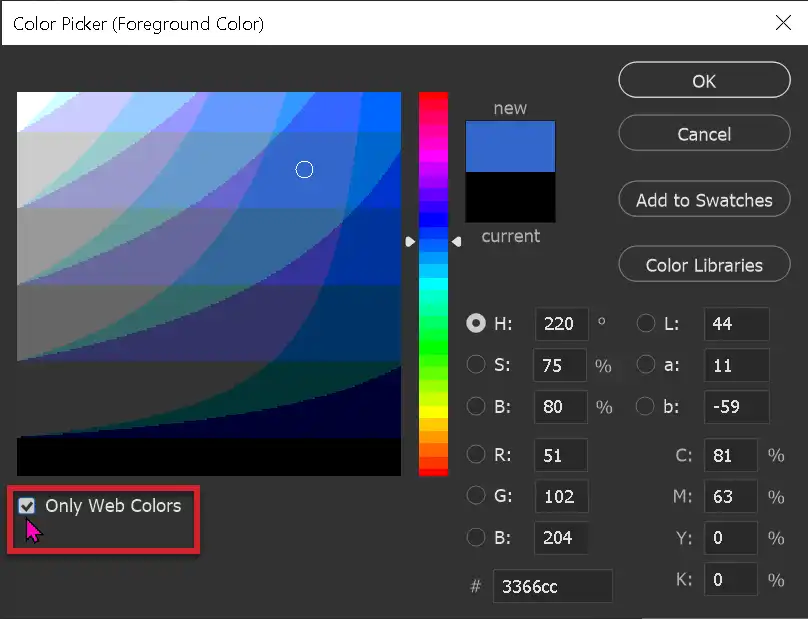
You can safely ignore the web safe colors warnings, but in case you're curious, this is what web safe colors look like.
A much more limited range of colors, which was all that older computers could display.
Thank goodness for progress and modern graphics cards!
6. Save Color Swatch
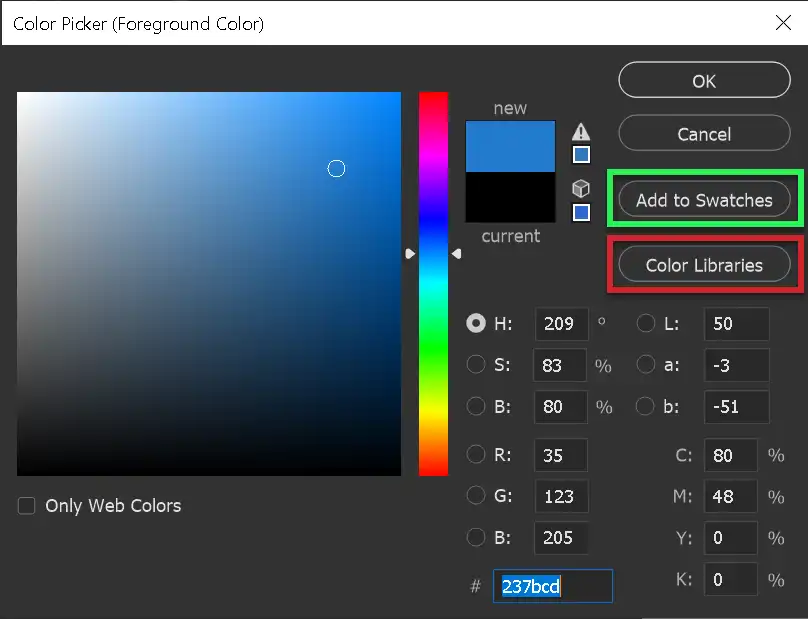
If you wish, you can add the color to Swatches (highlighted in green), where it will be saved, so you can use it again. Personally, I've not found this particularly useful in image editing, although it can be useful when working with other projects.
You can also add it to Color Libraries (highlighted in red). This is more useful if your Creative Cloud subscription includes other apps, such as InDesign or Illustrator, where you can use this color. If you have a photography or Photoshop subscription, this is not as useful.
7. Name Color Swatch


When you click on the Add to Swatches button, you will be offered the chance to name your color swatch.
8. Change Background Color
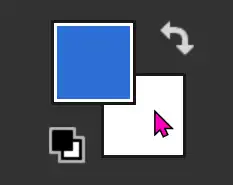
To change the Background color, click directly on Background Color.
Or you could switch Color Picker, by pressing the X key. Then what was the Background Color would now be the Foreground Color.
Anyway, let's click on Background Color.
9. Color Picker
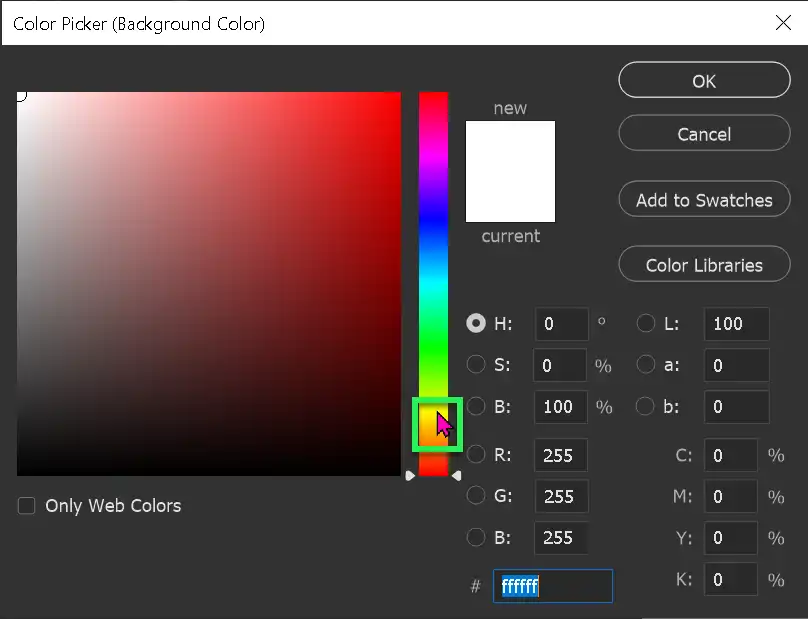
Again, this opens Color Picker. Note that in the top (white background), it says in brackets "Background Color".
10. New Color
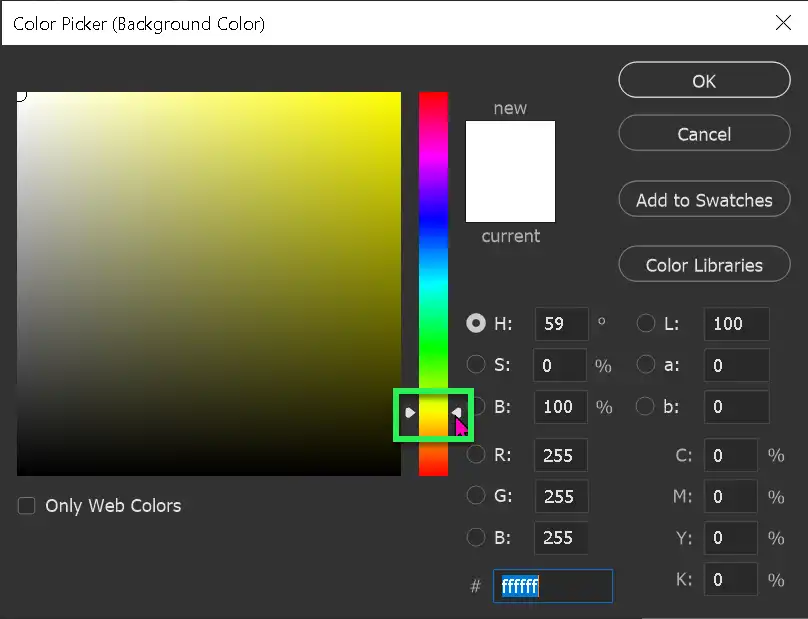
Again, this opens Color Picker. Note that (in brackets) in the top area (white background), it says "Background Color".
I've highlighted in green, the area I've clicked on in the vertical bar.
If you wish to fine tune the color, click and drag the small triangles (highlighted in green).
11. Selected Color
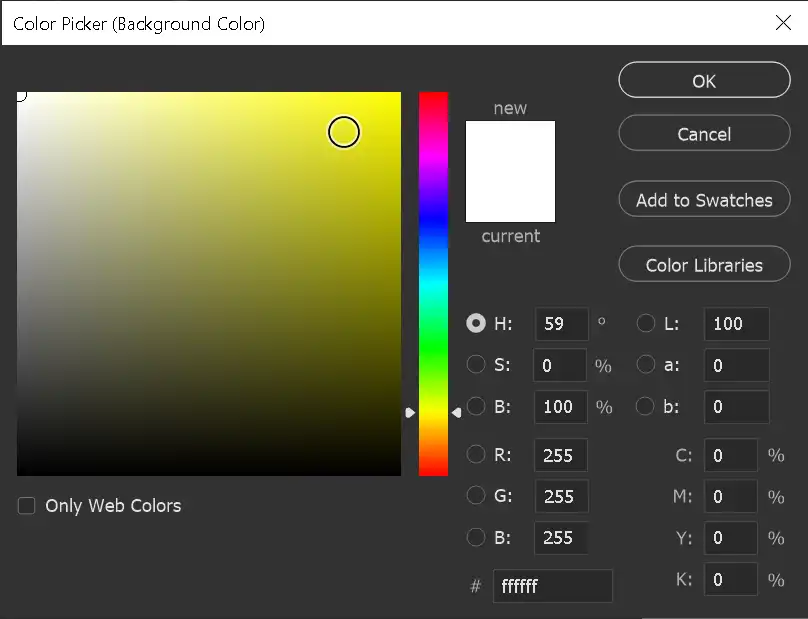
The circle shows where I have clicked to select a color.
12. Foreground & Background Colors
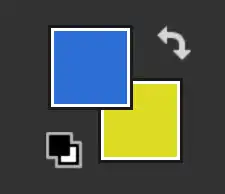
Here are the new Foreground & Background Colors.
To Switch them, click on the double-headed right angle arrow ... or much better, just press the X key on the keyboard. This is one of the best shortcuts.
13.
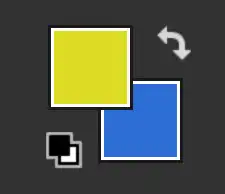
After pressing the X key, or the Switch button, the colors are switched. Switching back and forth between Foreground & Background Colors is particularly useful when working with Layer Masks.
Summary of Color Picker
The Color Picker is accessed through a large number of tools; anywhere that you change color.
