Page updated: 24 March 2026
Generate Image from Text Prompt Tool
You can generate images from scratch with simple text prompts directly within Photoshop.
You can let the AI be guided, by choosing from a range of reference images to create new ones and generate backgrounds more easily.

ON THIS PAGE
How to Generate an Image from Text Prompt
1. Select Generate Image

Select the Generate Image from Text Prompt tool, which is at the bottom of the Toolbar. It does not share the button with other tools.
2. Type Prompts
Type text into the box to describe the image you want to create.
Select the Art or Photo option, depending on what you want to generate.
3. Select Reference Image

Select the Reference Image button and this will bring up a gallery of images on the right.
4. Your own Reference Image
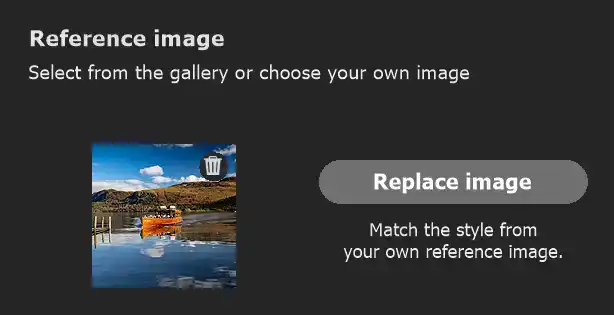
You can either select a reference image from those in the panel, or you can select one of your own.
To select your own image, click on the Choose Image button. If you have already selected an image from the panel, the same button will be Replace Image. Click on the button and locate your image. Your image is then visible and is the reference image.
5. Image Usage Rights

When you click on the button you will see this notice from Adobe, which says;
"Reference images help you apply a similar style or content to the images you generate. You must have the right to use third-party images, and your upload history will be stored as thumbnails."
6. Effects

Click on Effects and on the right you will see several categories of sample images with different effects.
7. Select Image
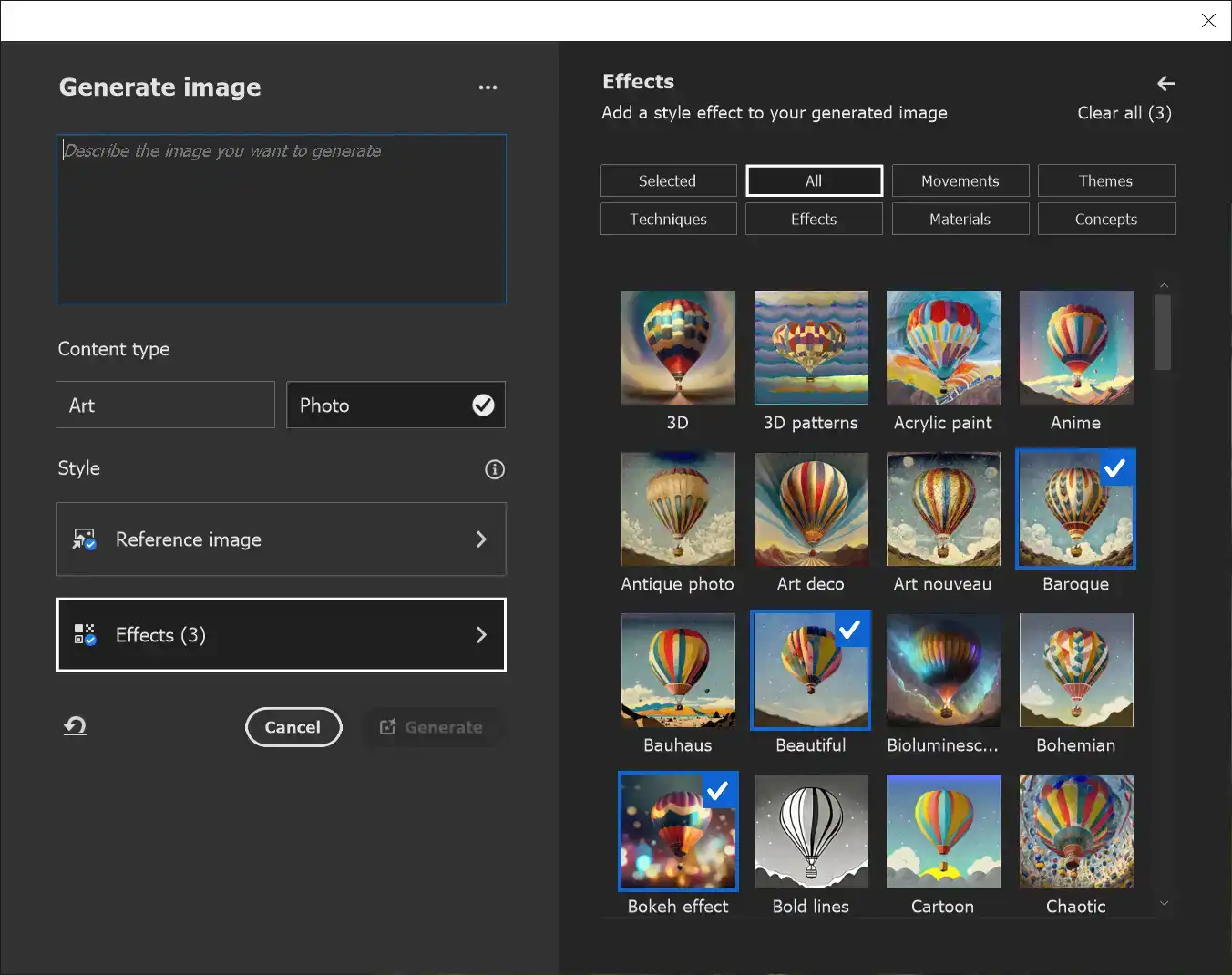
Click on an image to select it. A tick will appear, indicating it is selected.
I have selected 3 images from the "All" tab.
8. Select Multiple Images
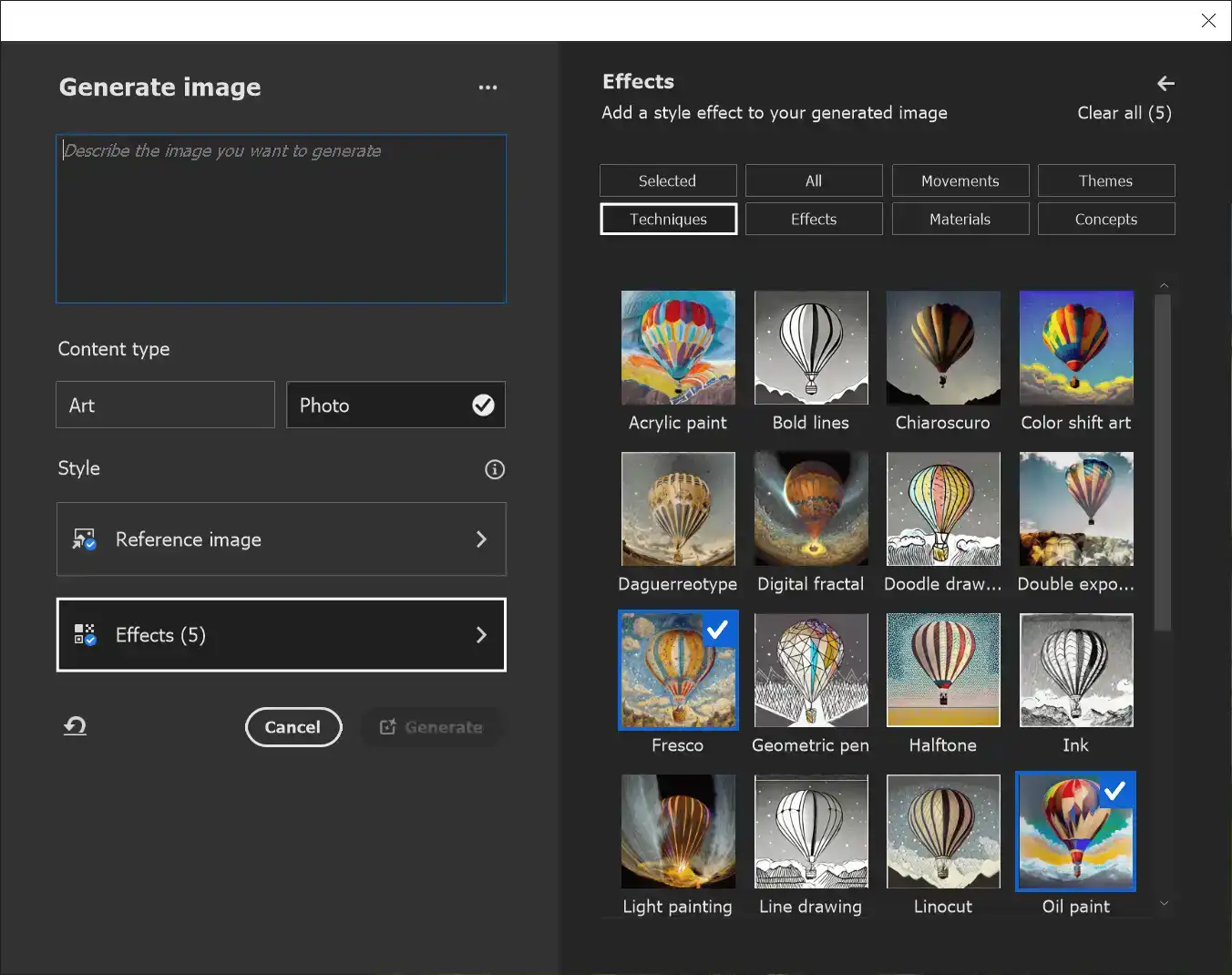
I have selected the Techniques tab and selected two more images.
9. Selected Tab
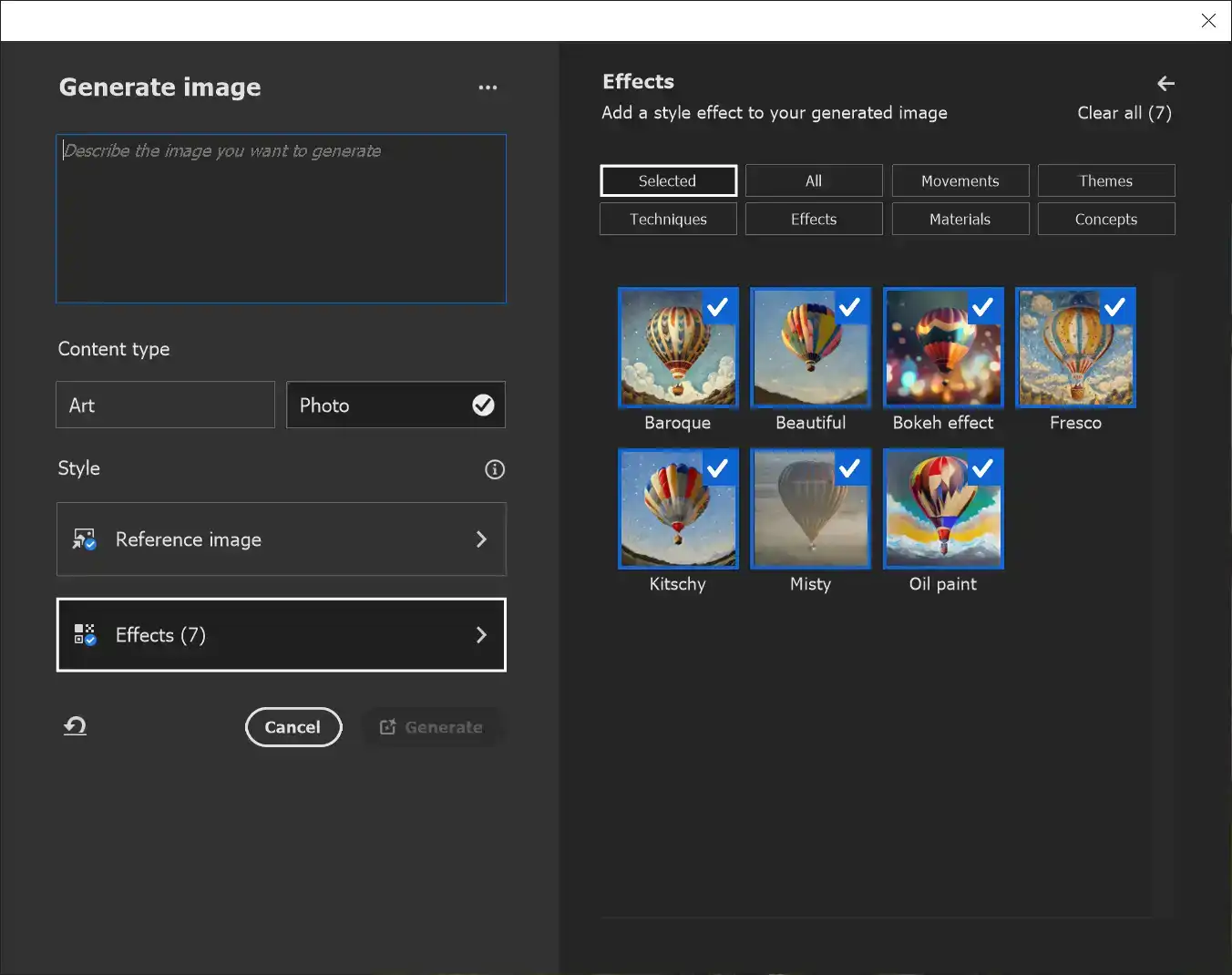
I have now selected the Selected tab and I can see all the effects I've selected.
10. Watercolor Effect
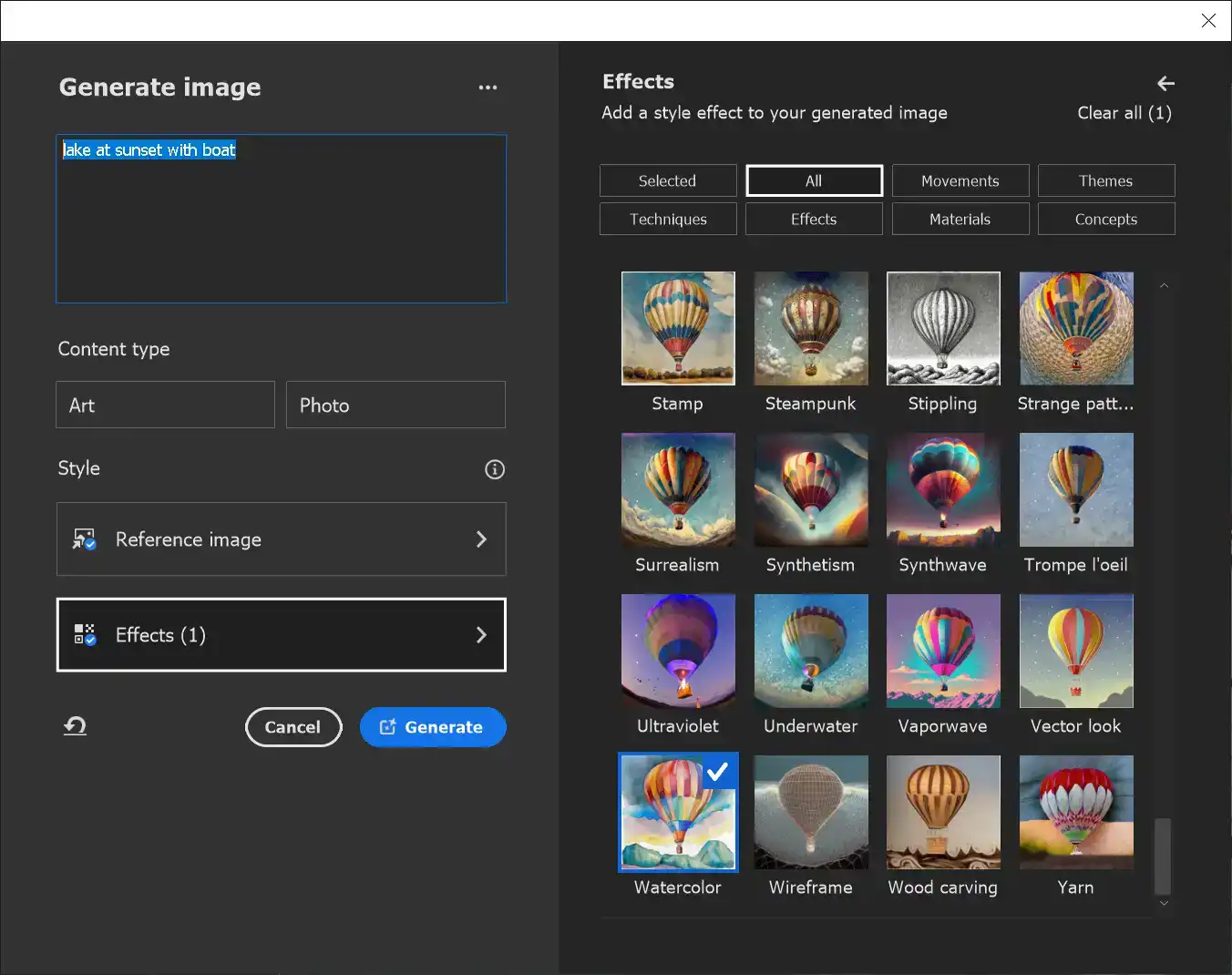
I have now selected the watercolor effect and typed the text "lake at sunset with boat".
11. Resulting Image
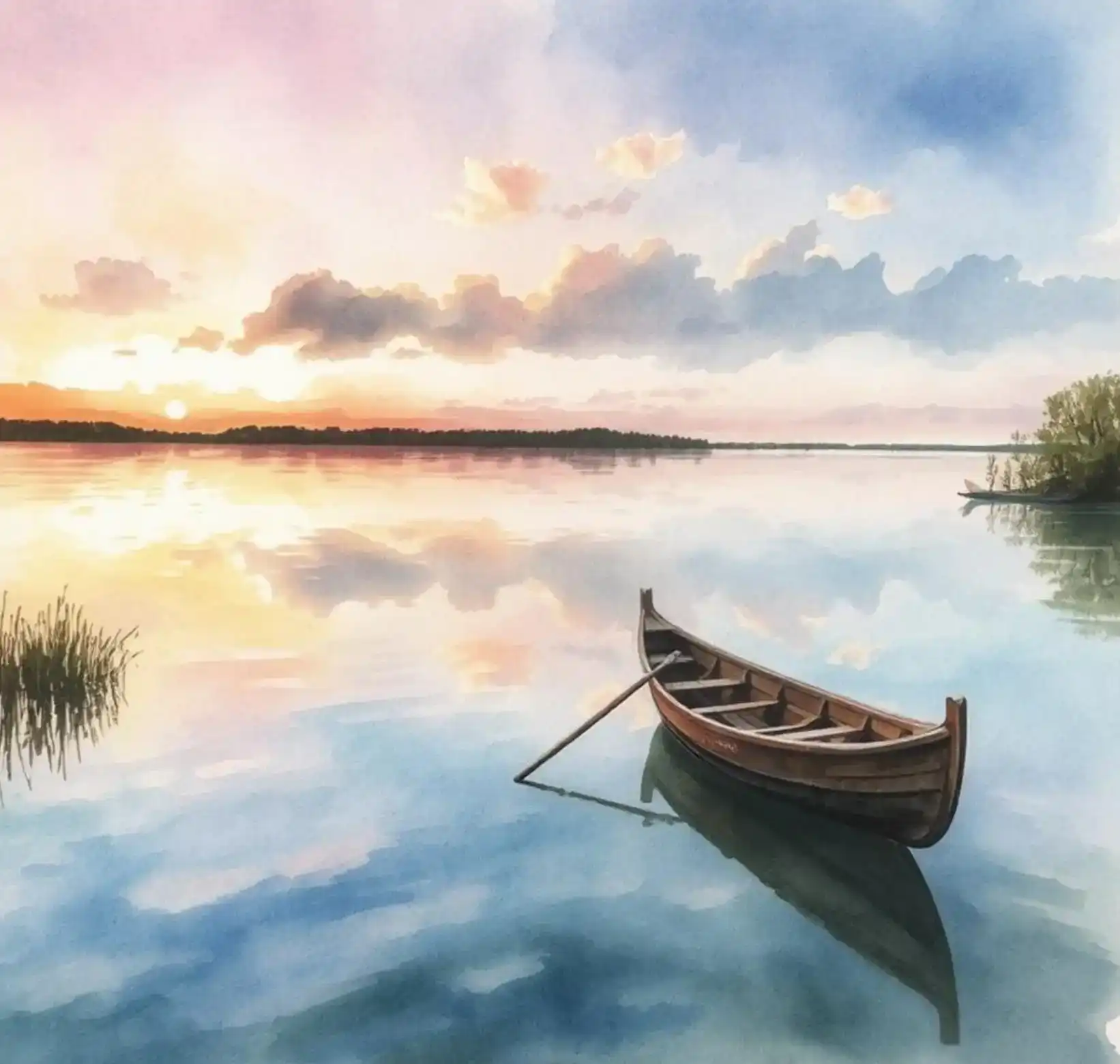
Here is the result of the "lake at sunset with boat".
12. New Image
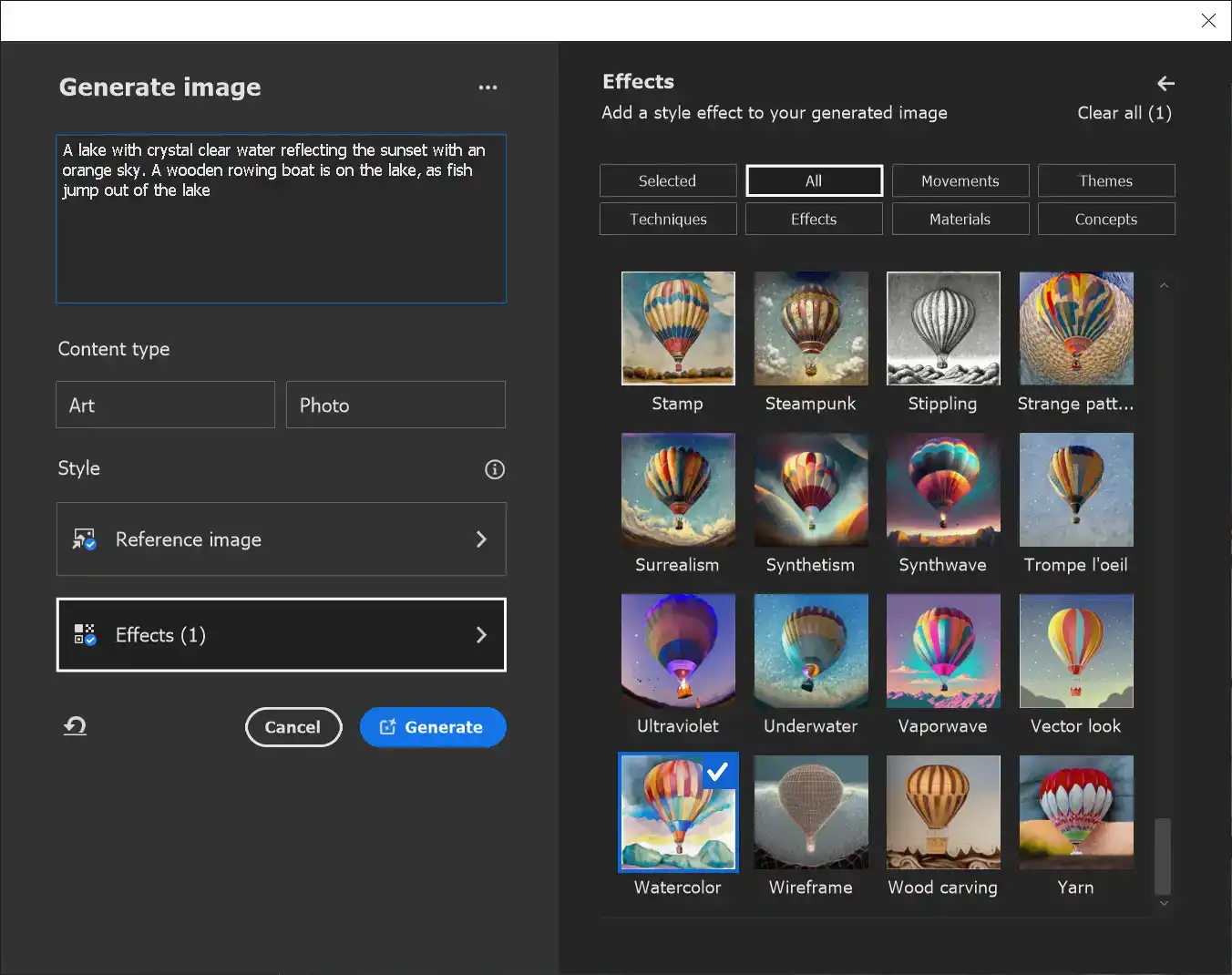
This time I've changed the text to "A lake with crystal clear water reflecting the sunset with an orange sky. A wooden rowing boat is on the lake, as fish jump out of the lake".
13. Result of previous step
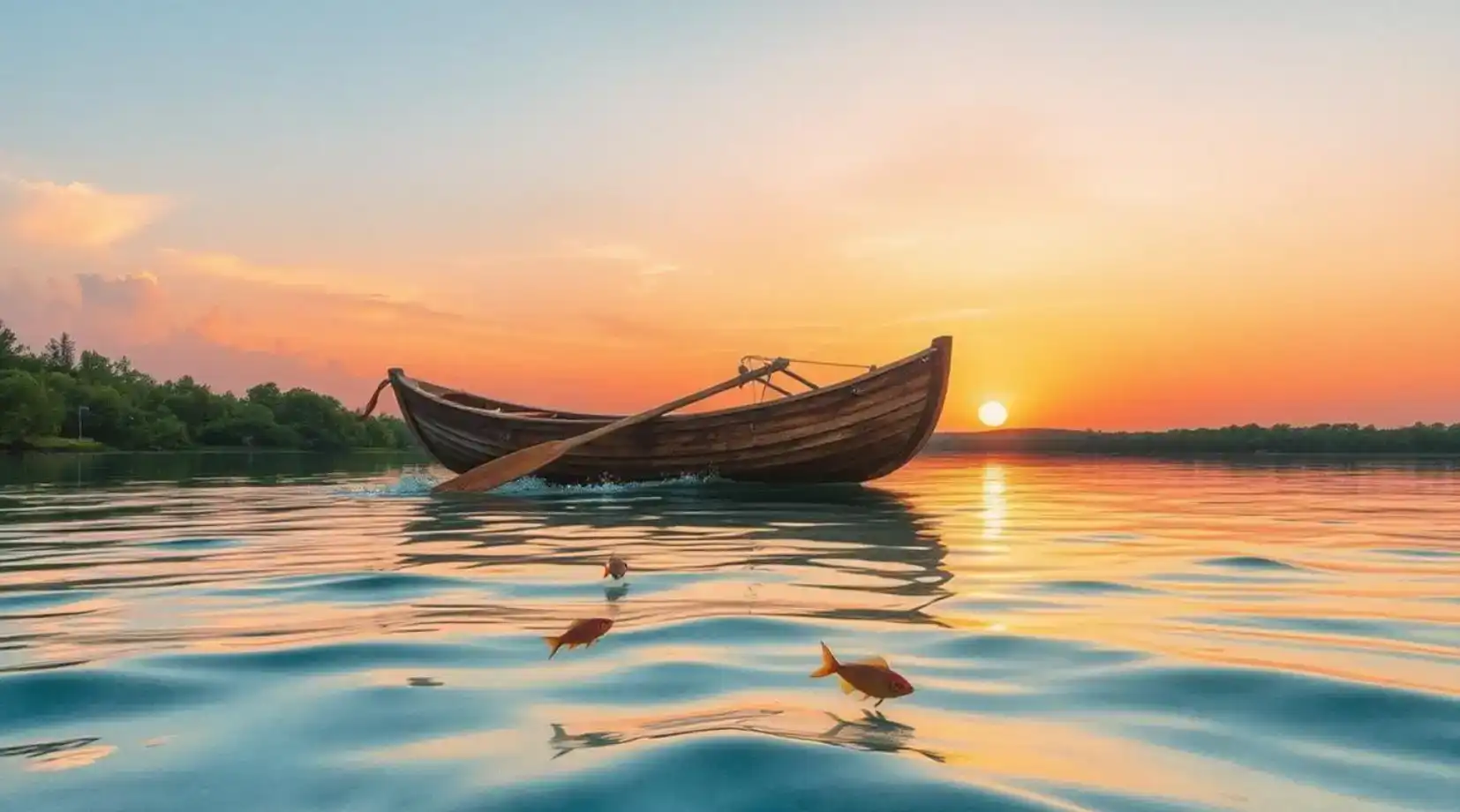
This is the result of the previous step.
Summary of the Generate Image from Text Prompt Tool
You can generate any type of image from scratch, from the ridiculous, to fantasy, to realistic. If the first result doesn't give you the image you want, refine your text. Try to be more descriptive for better results.
