Page updated: 24 March 2026
Colour Sampler Tool
The Colour Sampler tool works in a very similar way to the Eyedropper tool. However they do slightly different things. The Colour Sampler tool allows you to place up to 10 sample points in an image and then read the colour values in the Info panel.
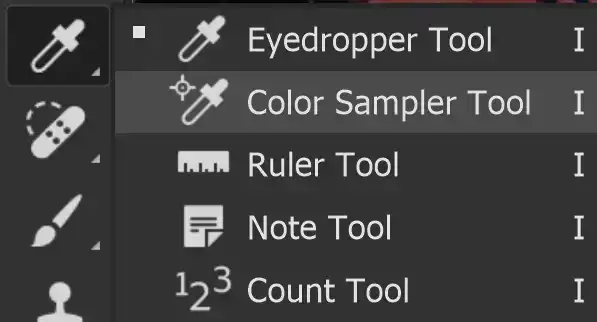
Eyedropper Tool Options

ON THIS PAGE
Tool Presets
You can create and save a Tool Preset for any tool, which will remember settings that you choose for that tool, so you can quickly and easily select different presets and settings for a particular tool. The degree of usefulness of presets varies, depending on the tool.
You can reset any tool back to its default settings by right clicking on the Tool Presets button and select Reset Tool. Take care not to Reset All Tools, unless that is intended.
Sample Size
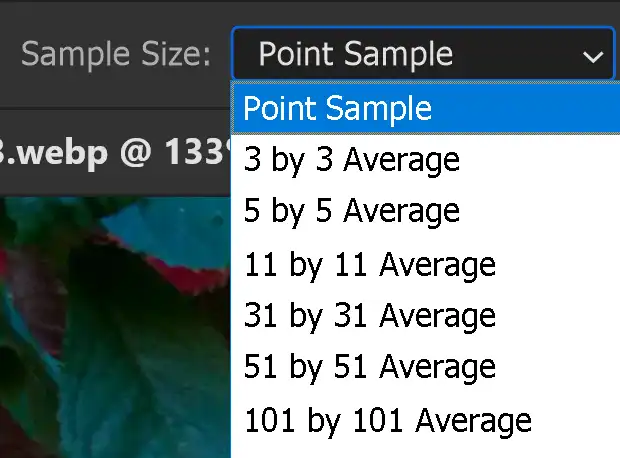
This works the same as the Eyedropper tool.
Select how large an area you want the tool to sample from, when you click in the image. The tool averages out the pixels sampled within the chosen area.
Personally, I've always been happy on the default settings.
Clear All
Clear all the sample points from the image. You can select a maximum of 10 sample points. Remove them all with this button.
1. How to use the Color Sampler Tool
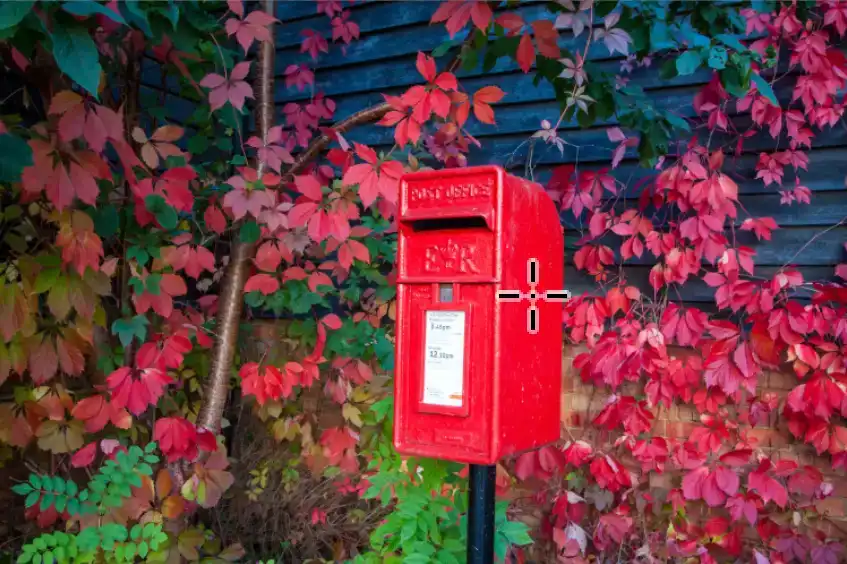
Click anywhere in an open image to select a sample point. To view the colour values of the sampled points, open the Info panel, from the Window menu.
2. Sample Point Added

A sample point is added in your image, with a number.
3. Add Sample Point

Click again in a different area to add another sample point.
I have added 10 sample points, which is the maximum number (Photoshop 2024).
4. Maximum Sample Points

If you try to add more sample points, you will see this message.
5. Info Panel

The sample points show the colour values on the Info panel. Note, I've only showed 4 sample points here, highlighted with colored boxes.
6. Info Panel open

If you don't click, but have the Info panel open, the tool works just the same as the Eyedropper tool. As you move the cursor around the image, you will see the colour values change.
Summary of Colour Sampler
The Colour Sampler tool can be useful in matching colors, but it's not a tool that you will regularly use when editing images.
