Page updated: 25 March 2026
Quick Mask Mode
When you are creating a selection, Quick Mask Mode allows you to easily see what you have and have not selected. A Quick Mask temporarily turns the area a semi-opaque red, (you can change this color) and either shows the selected, or non selected area (which you can see in options, see below).
For a complete list and description of all Selection Tools, see Selection Tools Summary.

ON THIS PAGE
How to Use Quick Mask Mode
1. Select Object
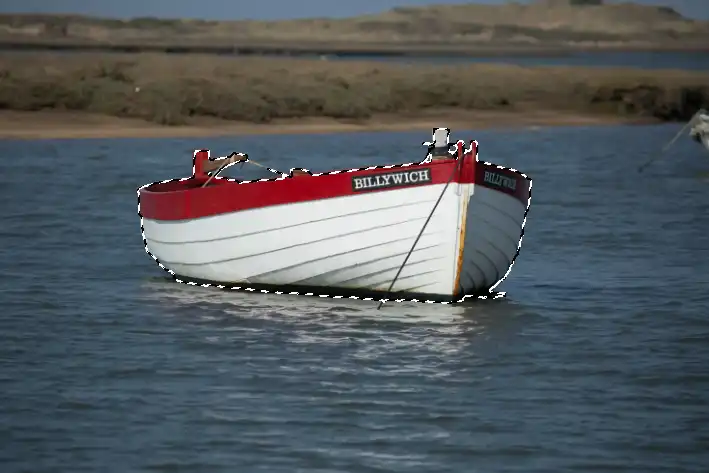
I have made a selection of the boat and this is visible by viewing the "marching ants".
2. Click Quick Mask
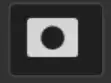
Click the Quick Mask button
3. On/Off Switch
When active the Quick Mask button looks like this. It works like a switch that you turn on and off by clicking.
4. Quick Mask Color
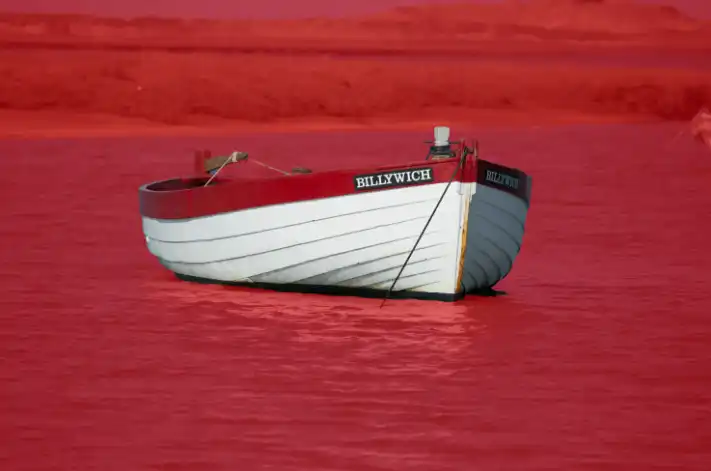
The Quick Mask is a semi-opaque red, showing the areas that are not selected.
With this image, red is not ideal, as it is close in color to the top of the boat, so we'll change the Quick Mask color.
5. Quick Mask Options
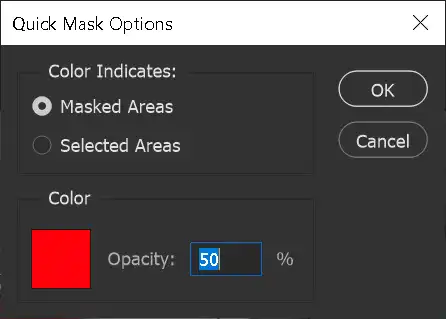
Double click the Quick Mask button to open the Quick Mask Options.
You can choose whether you want the masked areas (everything not selected) colored with the colored overlay, or the selected areas.
Click in the color to open the Color Picker, where you can select a new color.
You can also adjust opacity.
6. Select Color
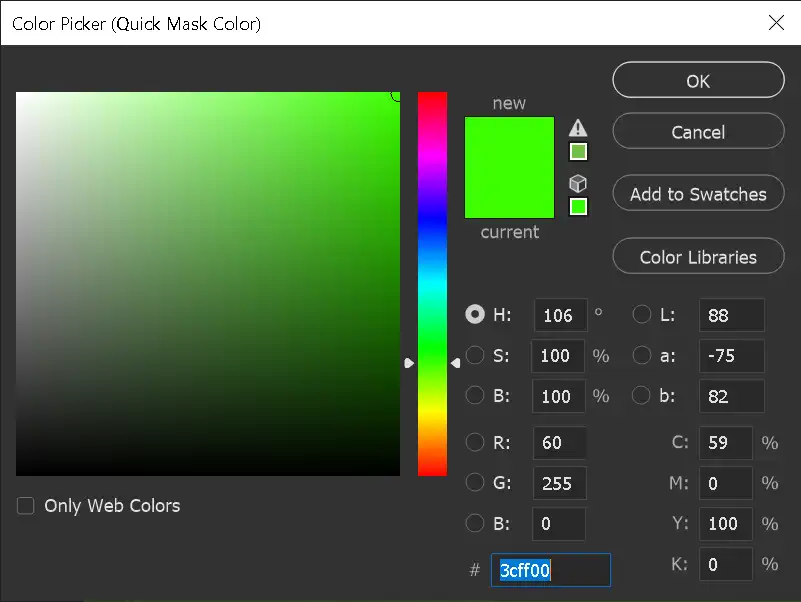
Click in the vertical bar to select a color. Then click in the large square to select a tone.
7. Custom Color
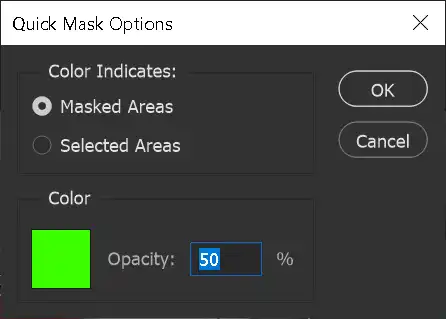
This green color will allow me to see the areas around the red of the boat very clearly, which was not the case with the default red color.
8. Object Selected
Here is the selection indicated by the marching ants.
9. New Custom Color
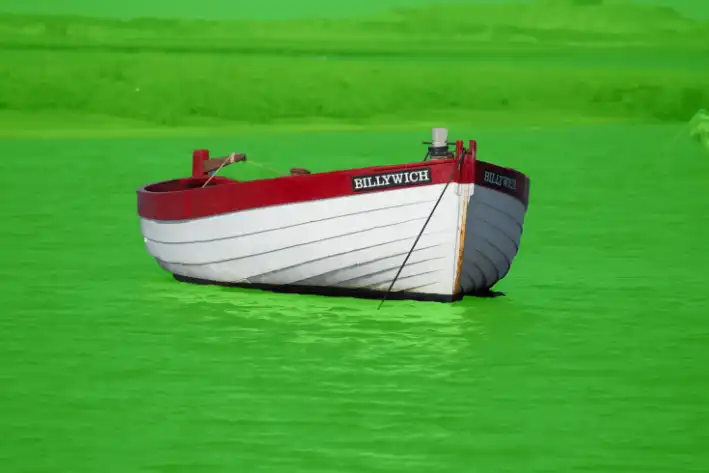
Here is the selection indicated by the Quick Mask, showing the masked areas in green.
10.

Here is the selection indicated by the Quick Mask, showing the selected areas in green.
Summary of Quick Mask Mode
The Quick Mask Mode can be a useful tool in helping make an accurate selection.
Remember to change its color, if that clashes with an area in your image. It's very quick and easy to change the color. Also try changing whether the Quick Mask Mode masks selected or masked areas.
