Page updated: 24 March 2026
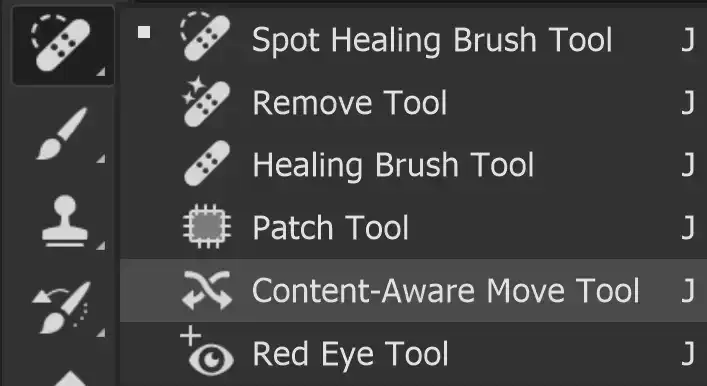
Content Aware Move Tool
The Content Aware Move Tool allows you to move a part of the image, automatically replacing the area that the item is moved from. It also allows you to extend the image, or part of the image.
How effective it is in doing this to a high quality will depend on the image and the selected object or area, as we will see below.
There is also a link to an alternative effective technique that can be more effective in some situations.
Content Aware Move Tool Options

ON THIS PAGE
Tool Presets

You can create and save a Tool Preset for any tool, which will remember settings that you choose for that tool, so you can quickly and easily select different presets and settings for a particular tool. The degree of usefulness of presets varies, depending on the tool.
You can reset any tool back to its default settings by right clicking on the Tool Presets button and select Reset Tool. Take care not to Reset All Tools, unless that is intended.
Selection Buttons
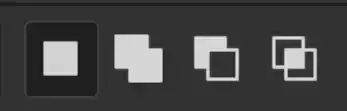
Many of the Selection Tools have these four buttons. Left to right, they are;
New Selection - Click to cancel existing selection and create a new selection
Add to Selection - Add to any existing selections
Subtract from Selection - Remove from existing selections
Intersect with Selection - Create custom shapes
Mode

Select Move to move an object, or selection, to another part of the image. The space that was occupied by the object will be automatically filled to blend in to the existing image.
Select Extend to extend or contract an object or selection and the tool will try to blend this into the existing image.
Structure
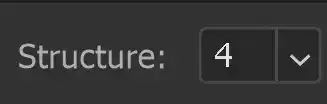
Choose how closely the patch should retain existing patterns in the image. Use the slider to adjust. A figure of 7 will try to closely match the patch to existing patterns. A figure of 1 will only loosely match to the existing patterns.
Color

Choose how much Photoshop should try to blend colors in the patch with existing colors in the image. A figure of 0 will disable color blending. A figure of 10 will apply maximum color blending.
Sample All Layers

Choose whether to sample from all layers, or just the selected layer.
Transform On Drop

If this option is selected, the Transform tool is automatically applied to the selection after it is moved. A box with handles is applied and you can drag the handles to resize the selection.
If this option is selected, but you don't want to resize the selection, just press Enter without resizing and your object will be moved and the original area will be blended in to the image.
If this option is not selected, the object will be moved when you release the mouse button and the area it previously occupied will be automatically filled with content front the image.
How to use the Content Aware Move Tool
1. Content Aware Move Tool
Select the Content Aware Move Tool from the toolbar. Like most tools, it shares the button with other tools and the one that is visible will be the last tool used.
2. Whole image

This is the whole image. We will zoom in to the lower right corner and move some sheep.
3. Zoom in
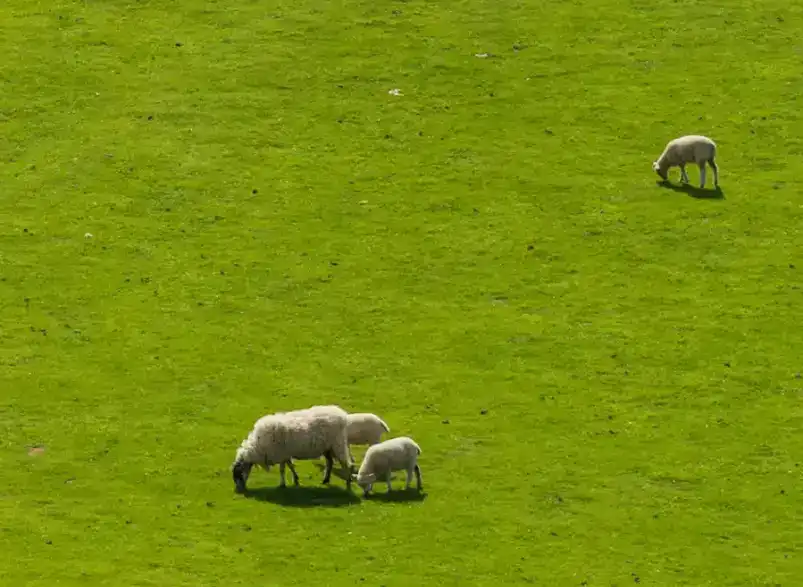
Here is the zoomed in area.
4. Mode Options: Move
In the Mode options select Move. This is the default setting, but the tool will remember the last setting used.
5. Drag a Selection
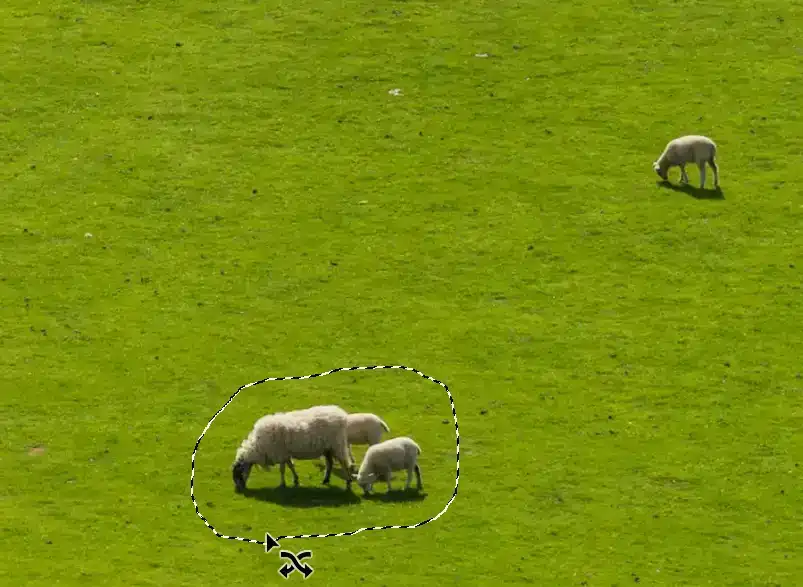
Click and drag to create a selection around the object you wish to move. Here I've selected the group of sheep.
6. Drag to new position

Click within the selection and drag to a new position.
If you have not selected Transform On Drop, when you release the mouse button the object will be moved and the area that it previously occupied will automatically be filled with the surrounding area, trying to blend in to the image, as in Step 7. The result of this will depend on the image, the object being moved and the area it's being moved from.
If you have selected Transform On Drop, you will see the box around the selection as shown in this screenshot. The object will also still be visible at its original location. If you wish to resize, click and drag the handles. If you don't wish to resize, press Enter and the tool will complete the move, exactly the same as if you didn't have Transform On Drop selected.
If you want to resize your object at this time, see Step 9.
7. Finished result
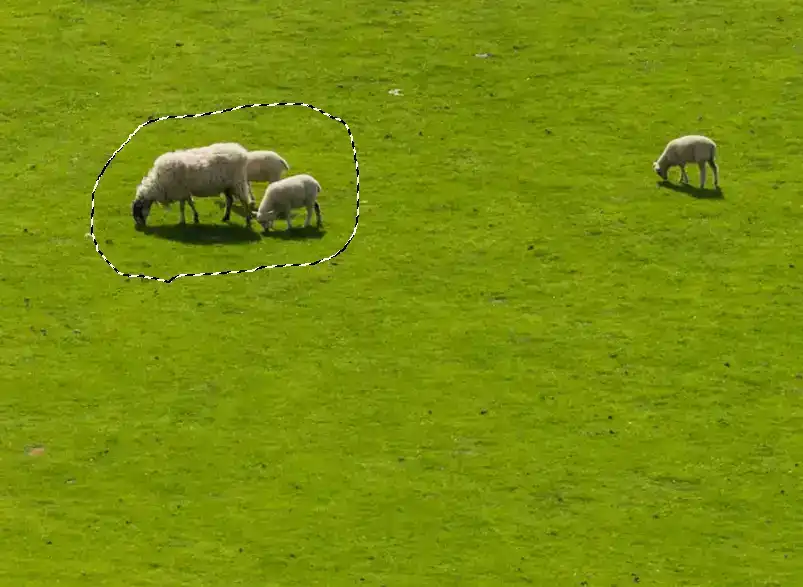
This is the finished result, with the object still selected and the old area automatically filled.
In this image, with lots of grass around the sheep, the tool has achieved a good quality.
8. Deselect
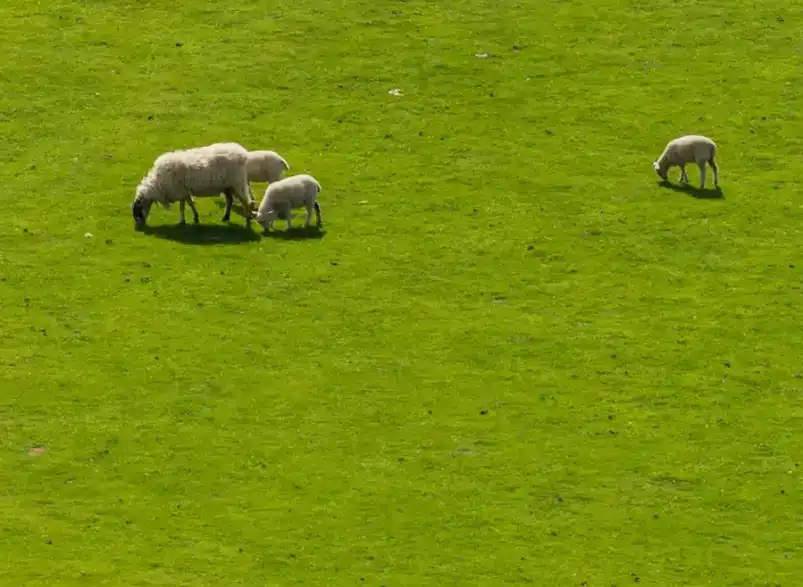
To deselect, press Ctrl+D, or from the Select menu: Select > Deselect, or click outside the image.
Note that to use most other tools, you will need to deselect. You will be unable to use most other tools or take other actions if a selection is active.
Most times, it's obvious that a selection is active, because you can see the "marching ants" (a moving dashed line indicating the selected is active). But sometimes, if your selection is small, it may not be obvious that a selection is active and you may be puzzled why you can't do what you want. Tip: if this is the case, press Ctrl+D. If a selection is active, it will deselect it. If there wasn't a selection active, pressing Ctrl+D nothing.
If a selection is active, some actions will be allowed, such as adding a Layer Mask, or adding an Adjustment Layer (which will also automatically include a Layer Mask created from the active selection). In both cases they will be applied to the active selection, i.e. they would have a Layer Mask applied that is created directly from the active selection.
9. Resize an Object with Content Aware Move
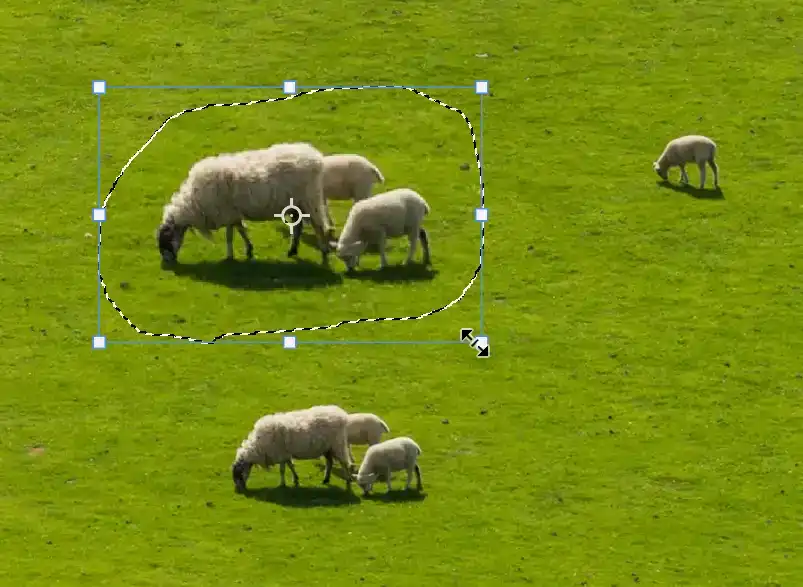
If you want to resize an object, while moving, carry out the steps 1-5, above.
As in Step 6 above, the option Transform On Drop was selected, so the Transform controls and a box are automatically added. In this step the moved sheep have been enlarged, as shown by the original sheep below the selection. The original area is only filled it when you press Enter, after making changes to the size, as shown in the next step.
10. Original are removed
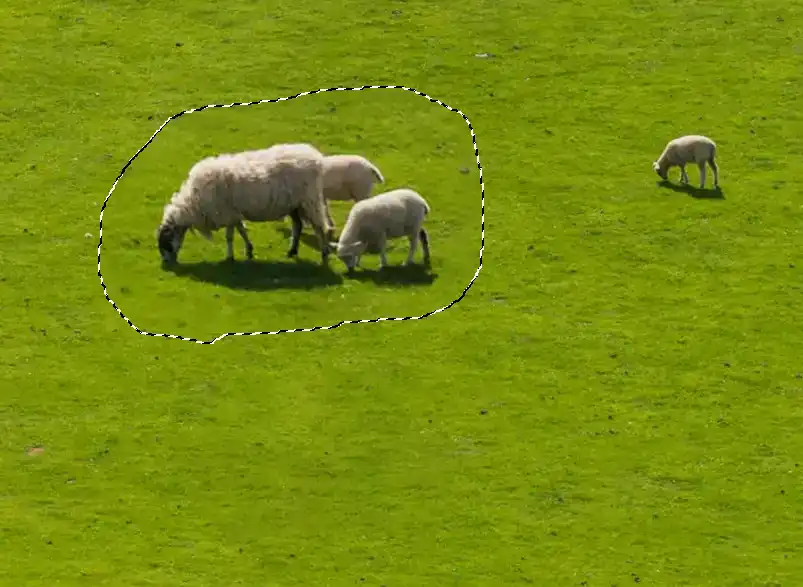
After enlarging the sheep and pressing Enter, the originals are removed.
11. Deselect
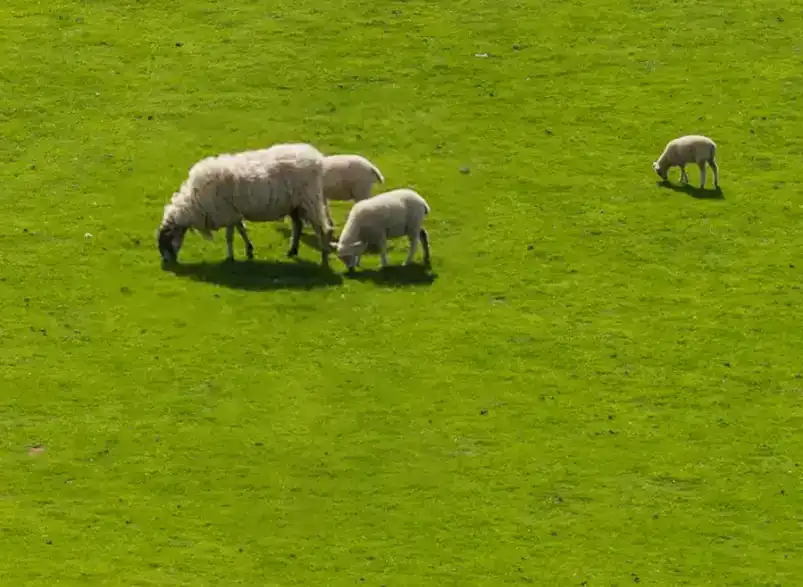
To deselect, press Ctrl+D, or from the Select menu: Select > Deselect, or click outside the image.
Note that to use most other tools you will need to deselect. For more information, please see Step 8.
12. Content Aware Move Tool Extend
Here is the whole image. This time we will zoom in to the bottom left corner and Extend the tree.
13. Mode Options > Extend
From the Mode options, select Extend.
14. Draw selection

With the Content Aware tool, draw a selection around the tree.
15. Drag selection to extend
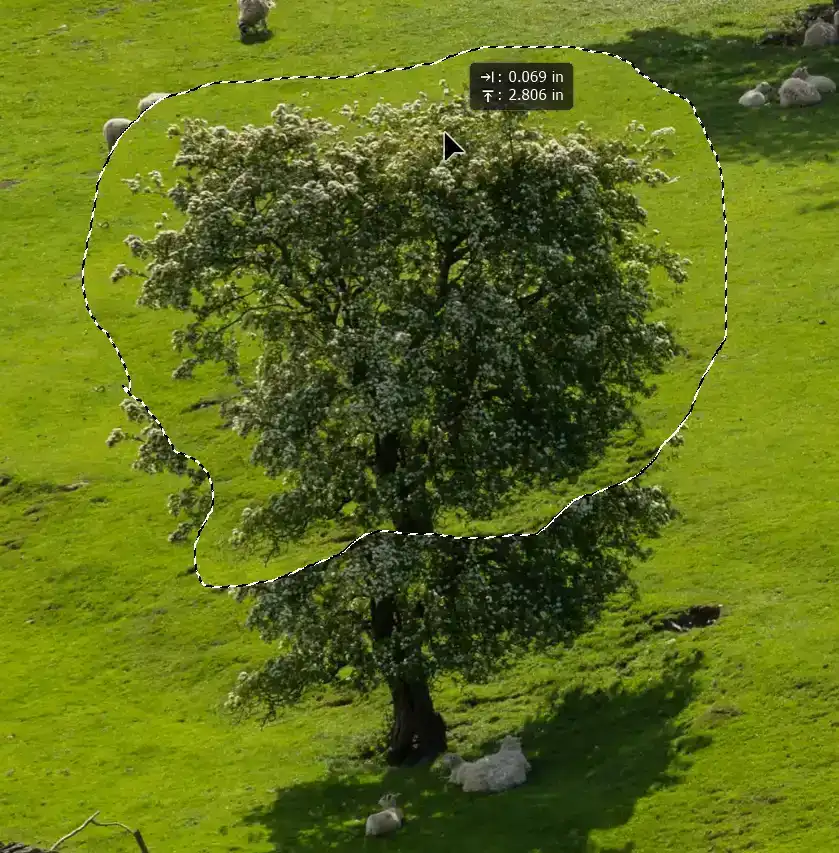
Drag the selection to extend it. Here I'm dragging the selection upwards to increase the height of the tree.
16. Imperfect result
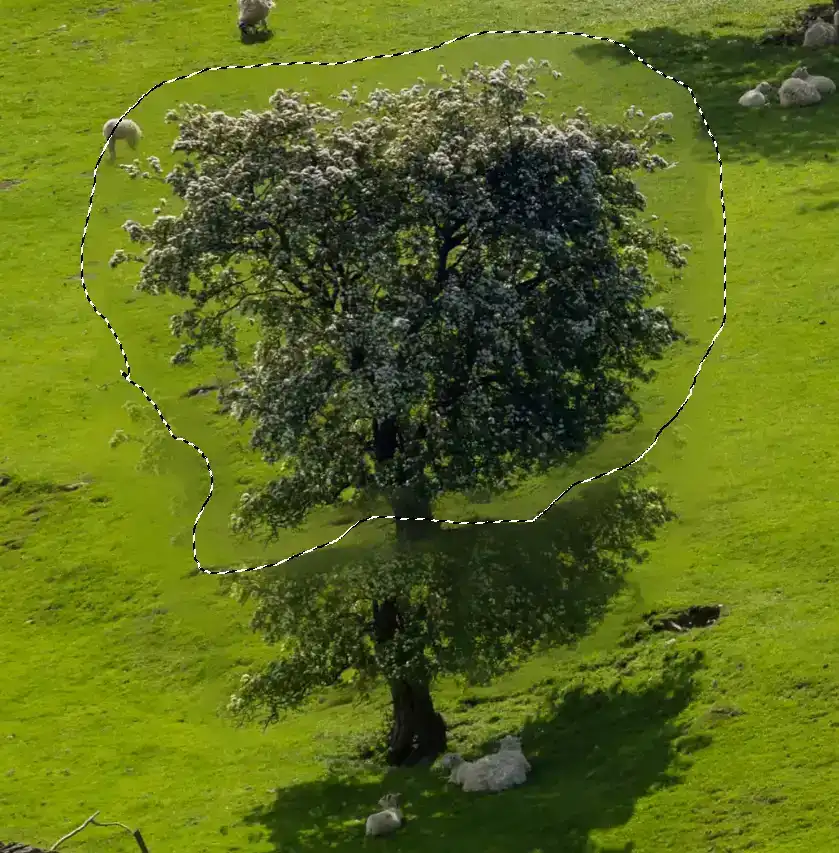
On releasing the mouse button (without Transform On Drop selected), the action is completed, but the result is not perfect.
17. Deselect
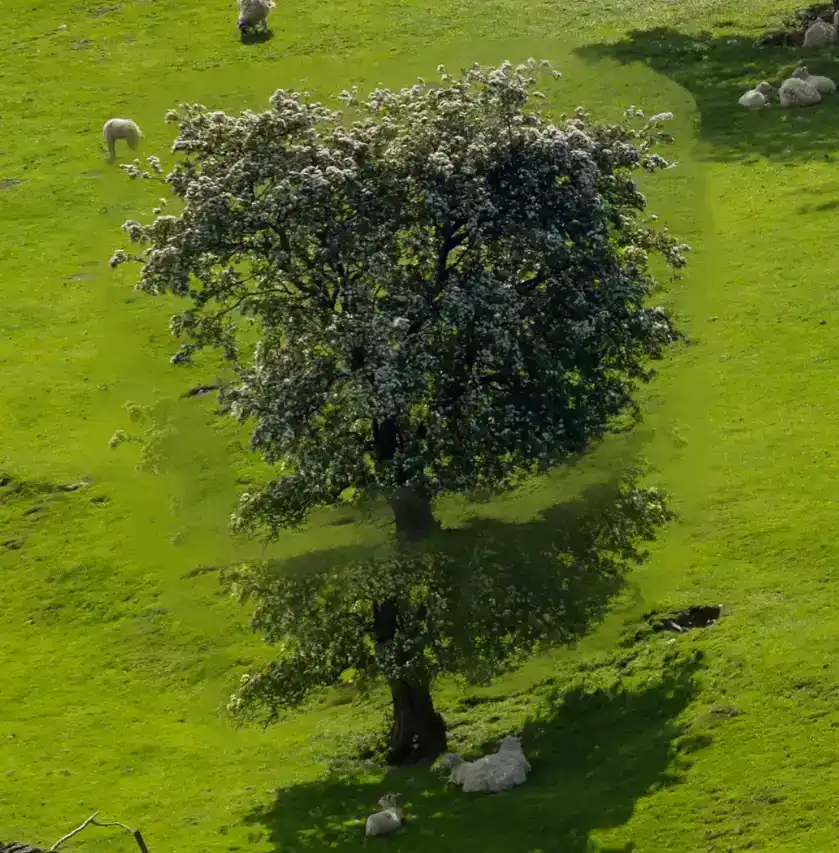
Deselect by pressing Ctrl+D, or select Deselect from the Select menu.
The result doesn't look great. If you make a selection with the Content Aware Move tool, it can only be a basic selection, as you just draw freehand around the object, (just like using the Lasso tool). In many cases this is fine. It worked well with moving sheep (above) as there was lots of similar content around the sheep (grass) and where the sheep were moved to.
However, when selecting the tree to Extend it, we face a more difficult challenge. We can make a better selection of the tree by using a Selection Tool instead, such as the Object Select tool. (see here for a detailed tutorial on the Object Select Tool).
Below is an improved method to move an object with the Content Aware Move tool, selecting the object with a selection tool, instead of the rather clumsy selection we've seen above.
I also have an alternative method to increase the size of an object using just the Object Selection and Move tools Resize Object tutorial, to achieve a much better result.
18. Content Aware Move Tool + Selection for Better Results
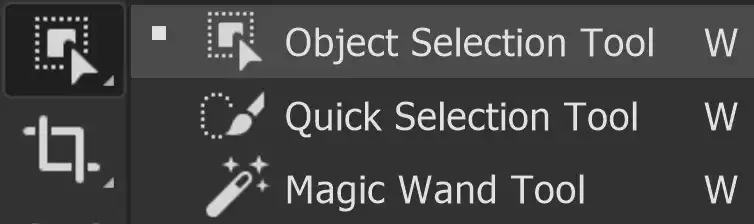
Select the Object Selection tool from the Toolbar. Like most tools, it shares the button on the toolbar with other tools and the visible tool will be the last one used.
19. Object Selection Tool
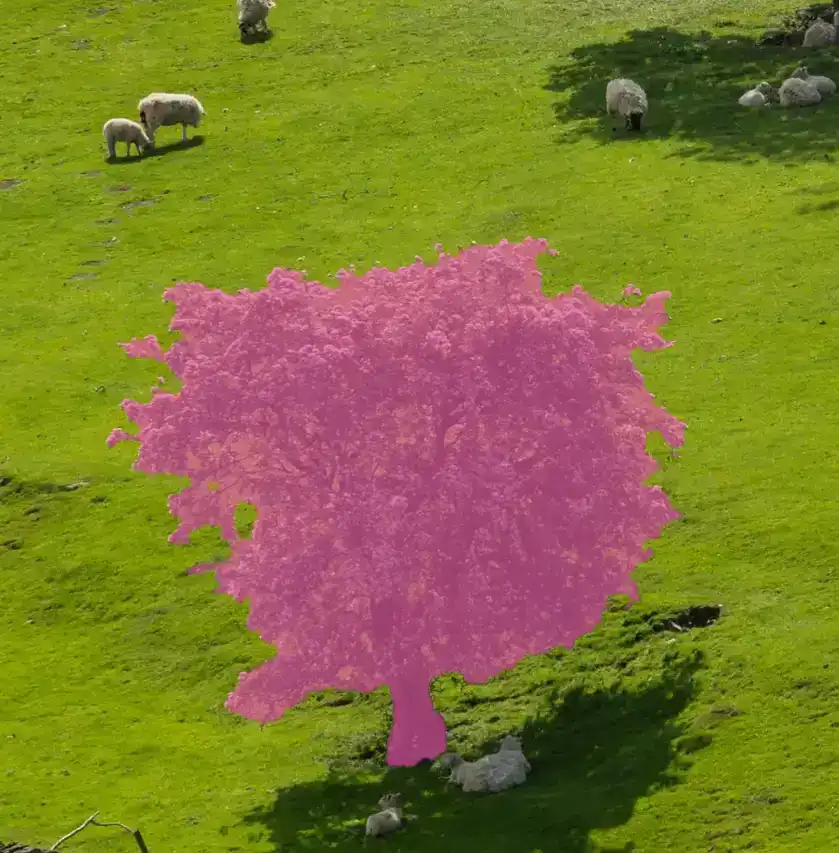
Move the cursor over the tree and the Object Selection tool will highlight the object it finds in pink.
Click to select.
20. Automatic selection
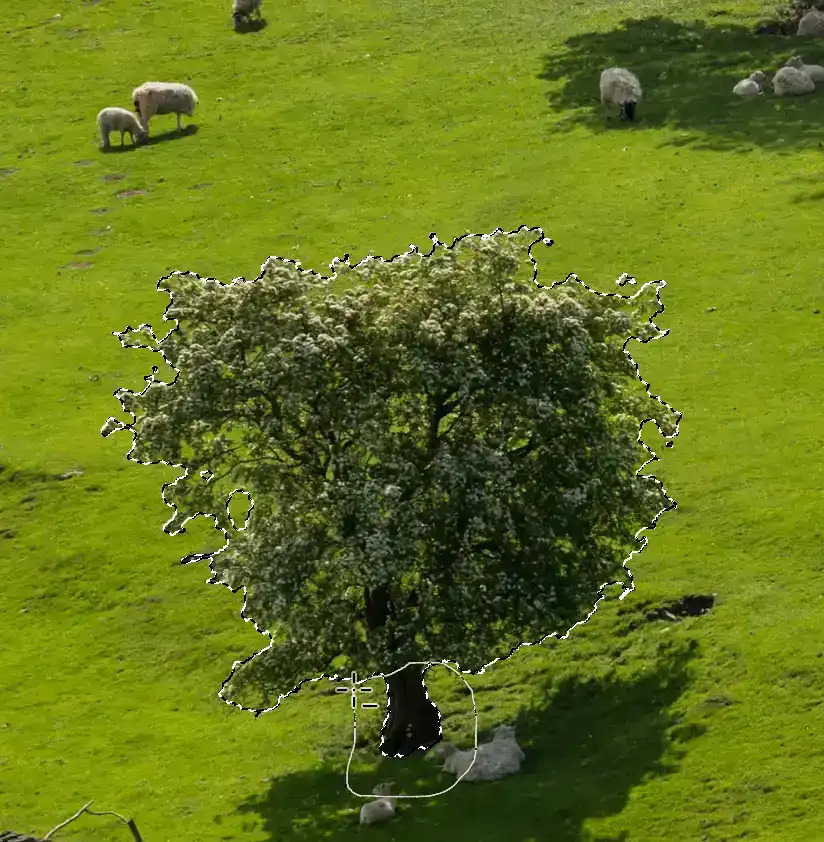
The tree is automatically selected.
However, we don't want to include the trunk, so this needs to be removed from the selection. You can do this quite easily with the simple Lasso tool.
21. Select Lasso Tool
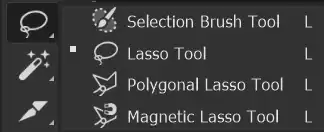
Select the Lasso tool from the Toolbar. Like most tools, it shares the button on the toolbar with other tools and the visible tool will be the last one used.
22. Subtract from Selection
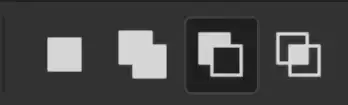
Select the 3rd button, Subtract from Selection.
23. Draw around trunk
Draw around the trunk. Make sure to join up to the beginning of your selection. This part will then be removed from the selection of the tree.
24. Join up start of selection

Draw around the trunk. Make sure to join up to the beginning of your selection. This part will then be removed from the selection of the tree.
25. Select Content Aware Move Tool
Select the Content Aware Move tool.
26. Transform on Drop
Select the option to Transform On Drop.
This will automatically add the Transform box, when you move the selection, so you can resize it.
27. Structure Slider
Click on Structure and increase the slider to 7, which is the maximum. This is to retain as much detail as possible.
28. Drag selection

Click and drag the selection just a short distance. Having moved it, it will automatically add the Transform box, with handles for resizing.
29. Transform added
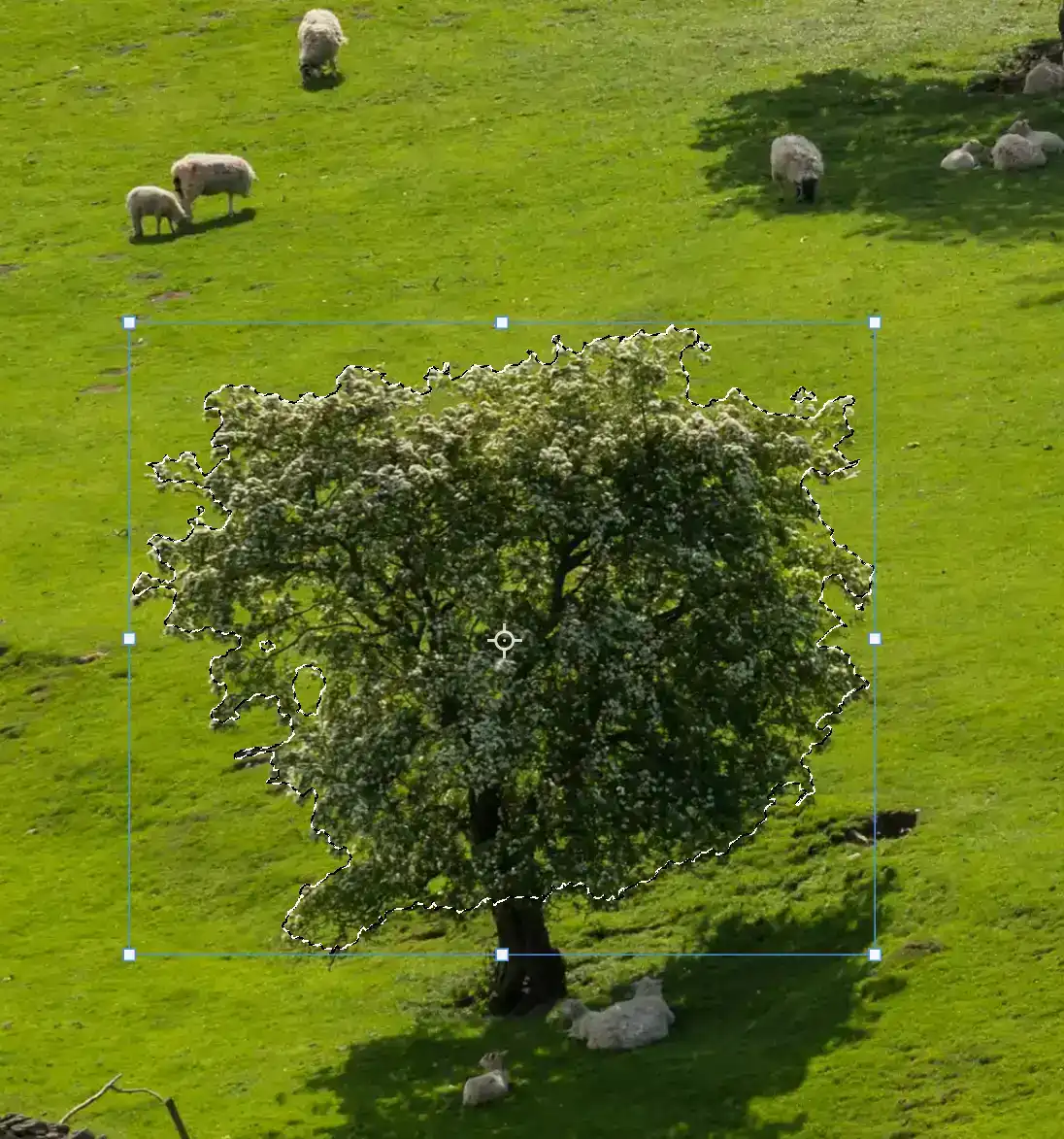
When you release the mouse button the Transform box will be added.
30. Resize Handle
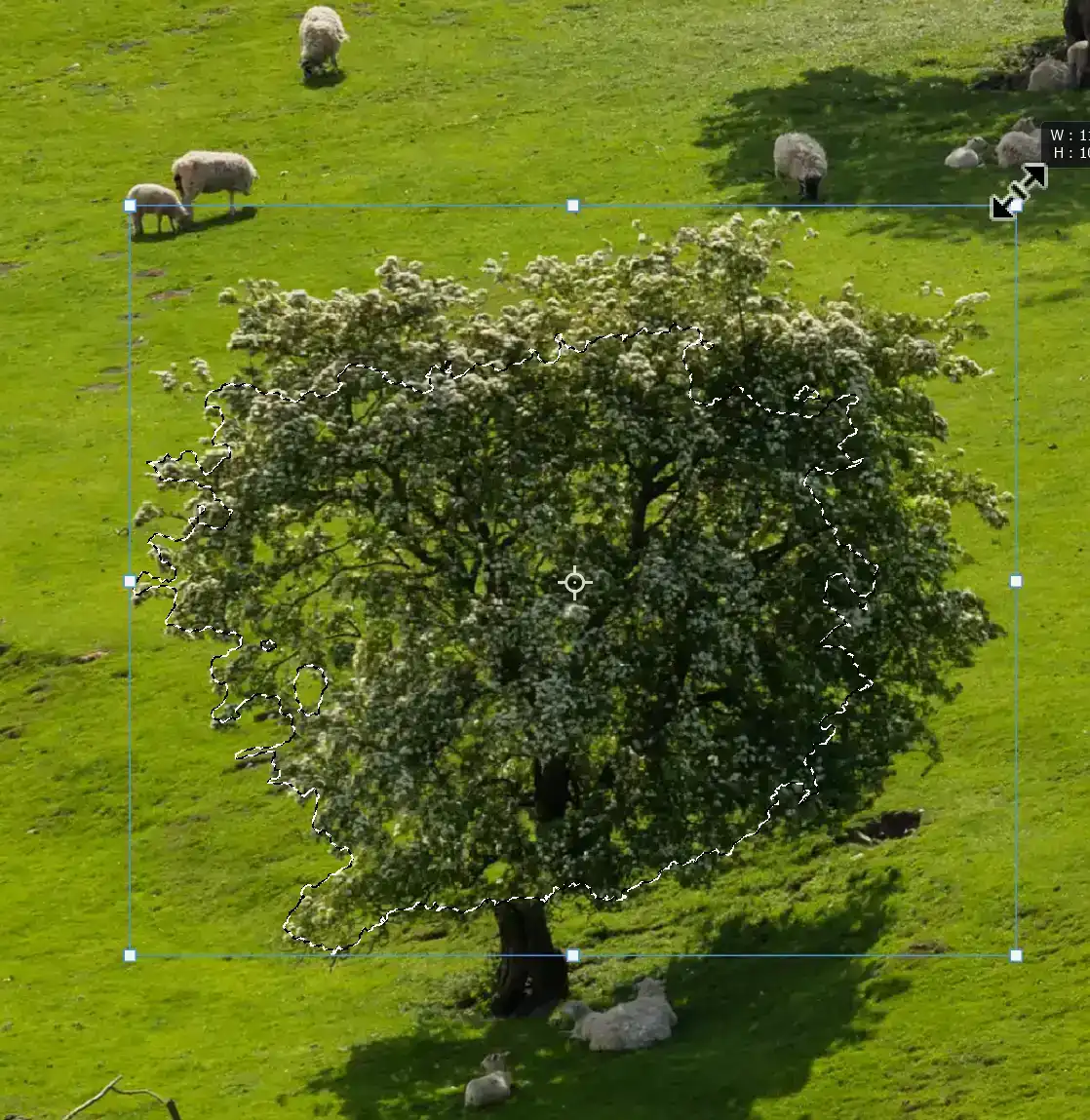
Click and drag a top corner handle to resize. The screenshot shows the tree on its right side has been enlarged past the original selection.
31. Repeat resize

Repeat this with the top left corner handle.
You may need to slightly move the enlarged tree, so that the trunk is aligned. Just click and drag within the box to move.
32. Apply Transformation

Press Enter to apply the transformation.
Press Ctrl+D to deselect, or from the Select menu, choose deselect.
The result, using the Object Selection tool, is better than selecting the tree with the Content Aware Move tool, but it's not perfect in this image. Although it's not perfect, I wanted to demonstrate how you can use selection tools instead of making the initial selection with the Content Aware Move tool.
For an even better result, see A Great Method to Resize an Object tutorial.
Summary of the Content Aware Move Tool
The Content Aware Move Tool is an effective tool to move an object within an image, but of course results will depend on the image and the object to be moved.
It's not so impressive when trying to Extend (one of its Modes) an object, although Extend can work well in some situations.
Selection Tip
You don't have to make your selection with the Content Aware Move Tool. That's mostly what users would do, but you can select an area with any selection tool, then switch to the Content Aware Move Tool to do the content-aware-moving.
